
Flexible workstations are standardised workstations on campuses intended for the members of the University community. Flexible workstations are designed so that all computers under the University’s centralised management system work on them. The equipment at flexible workstations is largely the same regardless of location. You can therefore bring your own laptop or even a computer you’ve borrowed from Laptop Lender to a flexible workstation and start working straight away.
The locations of the flexible workstations vary by department.
Please note!
If you change the position or arrangement of the cables or monitors, please return them to their original configuration so that the workstation can be set up more quickly and easily for the next user.
Quick help
Components of the flexible workstation
- Adjustable desk
- Monitor(s)
- Required cables: USB-C and HDMI
- Keyboard and mouse
- Power socket
When you arrive at the desk, check that you can find the necessary cables. If it appears that there are no cables or they are not in the correct place, you can report this to the IT Helpdesk. Don’t waste your working time sorting out cables; move to another location if possible.
Cables and how to identify them
USB-C
- A USB-C cable allows you to connect most computers to a monitor / monitors.
- The monitor is usually recognised automatically.
- USB-C transmits video, audio and power to the computer.
HDMI
- The HDMI cable is used at flexible workstations, for example, to connect a second monitor to Mac computers.
- If necessary, select HDMI as the input source on the monitor.
Detailed help
Key components of the flexible workstation
- Adjustable desk
- Monitor(s)
- Cables required to connect the computer: USB-C and HDMI
- Keyboard and mouse
- Power socket
When you arrive at your desk, check that you can find the necessary cables. If it appears that there are no cables or they are not in the right place, you can report this to the IT Helpdesk. Do not waste your working time sorting out cables; instead, move to another workstation.
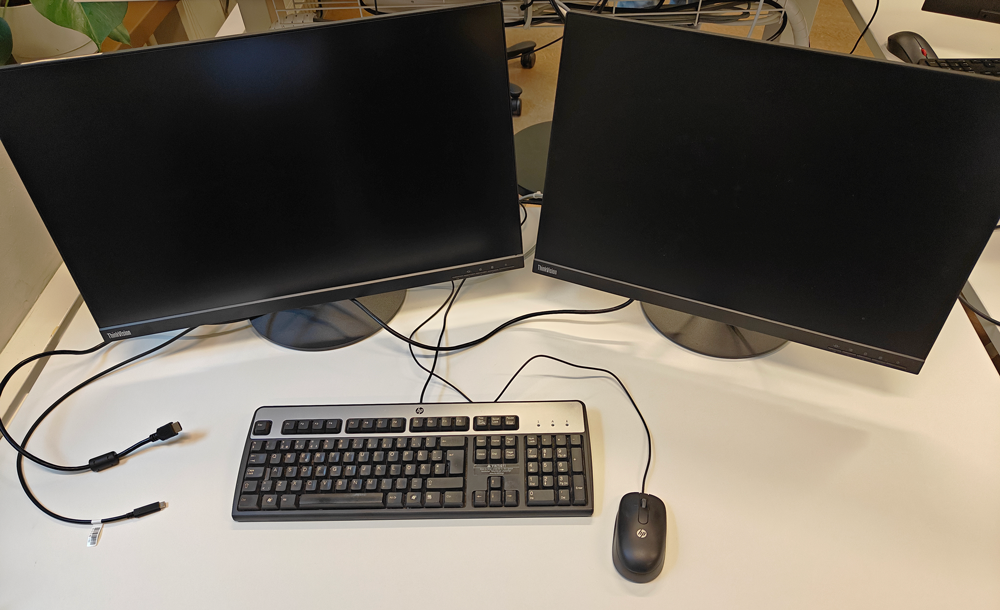
The flexible workstation pictured is located at Digihub (Fabianinkatu 24), but you can find similar ones elsewhere.
Connecting to the computer: cables and how to identify them
You can connect your laptop to an external display using either a USB-C or an HDMI cable. It’s generally best to use USB-C. This allows you to transmit the display signal and, in many cases, charge your laptop using a single cable.
With some laptop models, you may need to use a separate USB-C dock or other adaptors. Remember to bring any adaptors you’ve purchased for your computer with you, as the premises usually only provide the most common cables.
Identifying cables
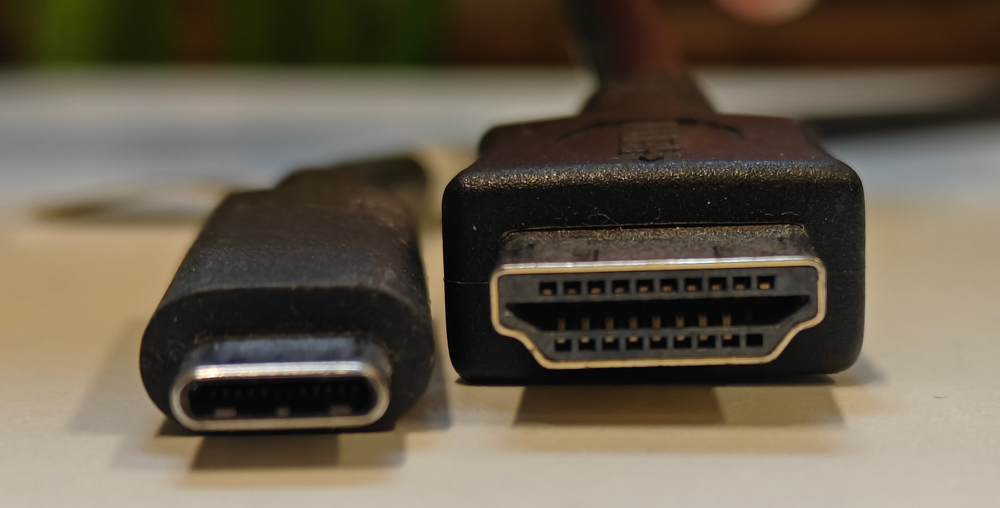
On the left in the picture is USB-C (small, oval and symmetrical). On the right is HDMI (wider, slightly trapezoidal in shape).
USB-C
A USB-C cable allows you to connect most computers to a monitor / monitors. The monitor is usually recognised automatically.
USB-C transmits video, audio and power to the computer.
HDMI
The HDMI cable is used at flexible workstations, for example, to connect a second monitor to Mac computers. If necessary, select HDMI as the input source on the monitor.
Video instruction
Give feedback
The instructions site of the University of Helsinki's IT Helpdesk helps you with IT-related issues related to your work. Let us know how we can improve our instructions. We greatly appreciate your feedback!
How would you improve these instructions?