
These instructions explain how to modify the common Outlook parts, such as language settings and the Ribbon, and the operation of individual parts of Outlook (Mail, Calendar etc.).
These instructions were written using Outlook 2019 on a Windows computer. They can be applied to other versions and operating systems.
Quick help
On the Detailed help tab, you will find the following instructions:
- An introduction to the Backstage view
- Changing the language
- Changing the message update cycle
- Adding public holidays to the calendar
- Checking your mailbox quota
- Changing how your name is displayed
Detailed help
Backstage
You can use the so-called Backstage view for modifying the appearance and operation of Outlook.
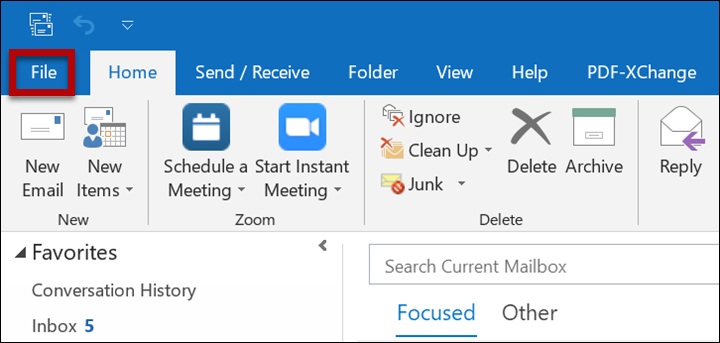
Use the File tab to access the Backstage view.
- Click FILE
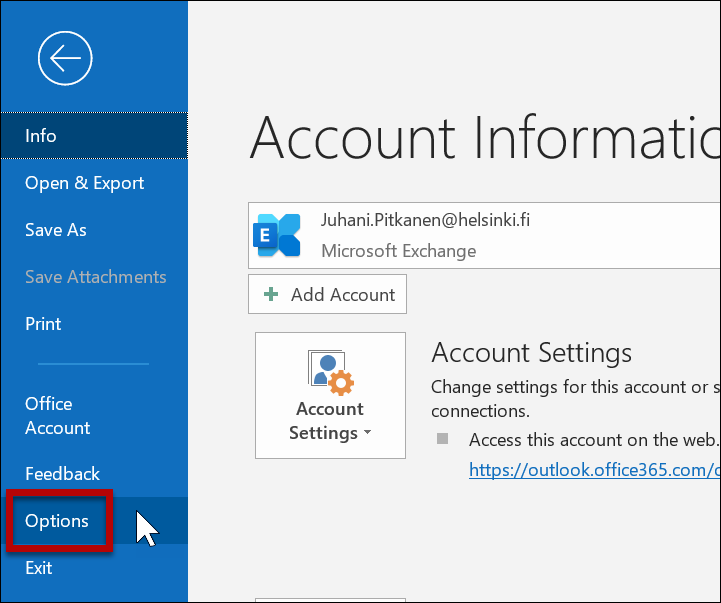
- Click Options.
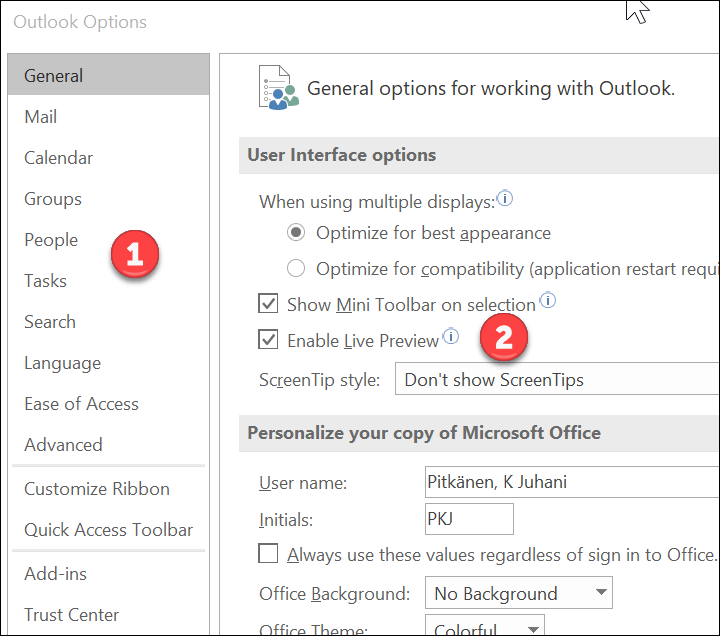
- In the column to the left, you can choose which Outlook property or part you want to modify (1). The column on the right (2) allows you to change the settings.
Changing the language
You can change the language used in Outlook's menus and instructions. You can change the language if the desired language pack is installed on your computer. For Windows computers covered by centralised application maintenance, Finnish, Swedish and English language packs are installed.
The language settings of the operating system also affect the settings. Note that the language settings may also affect the behaviour of other applications.
- Click FILE.
- Open Options.
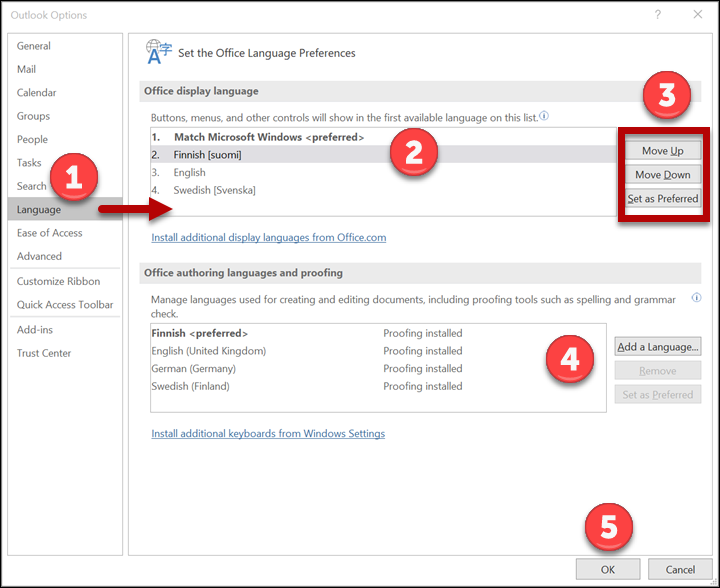
- Open the Language window (1).
- In the Office display language (2) list, choose the desired language and move it to the top of the list (3).
- You can add new authoring and proofreading languages under (4).
- Click OK (5) to save the changes.
- Close the Office applications and restart them.
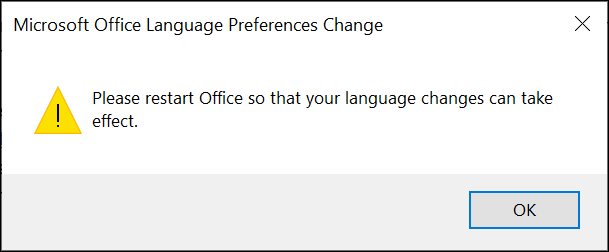
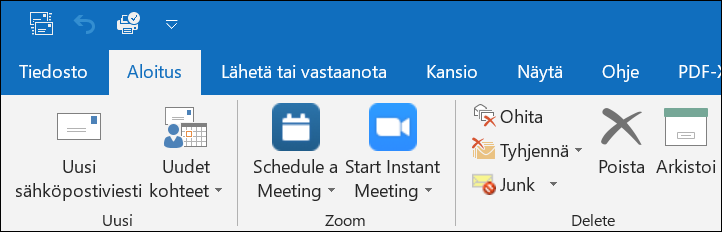
- The menu texts have now changed.
NOTE! Some language settings are retrieved from the computer's settings
- Even if English, for example, is set as the Outlook language, the names of weekdays and months may be displayed in a different language. These settings are based on the regional settings of Windows. These instructions explain how to change the language to English, but they also apply to changing to other languages.

If you want to see the weekdays and months in English, you need to implement the following changes:
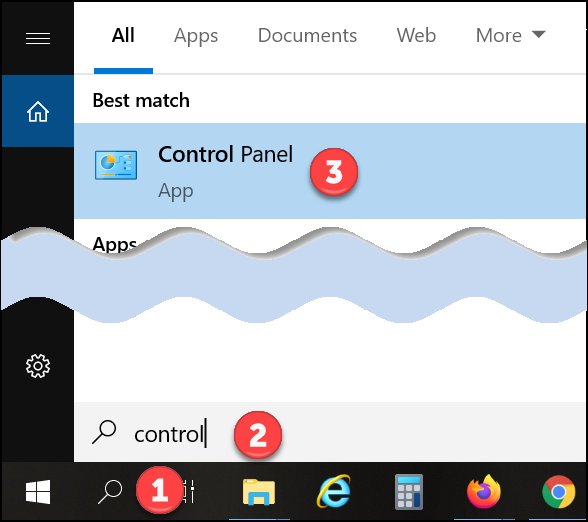
- Click the magnifying glass icon (1).
- Type control into the search box (2).
- Click Control Panel (3).
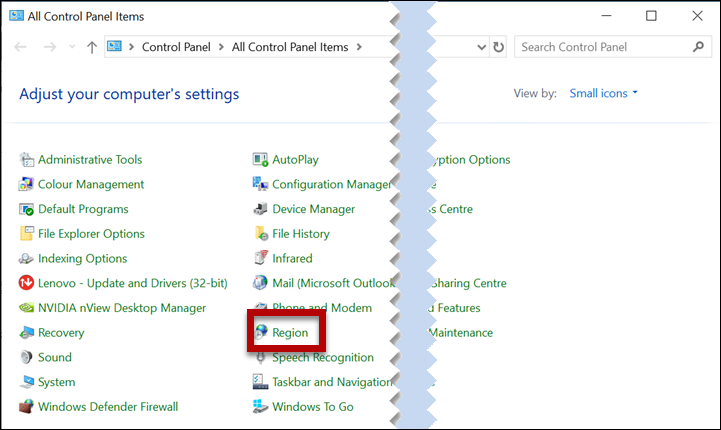
- Choose Region.
- Open the Formats tab (1).
- Change the settings in the menu (2).
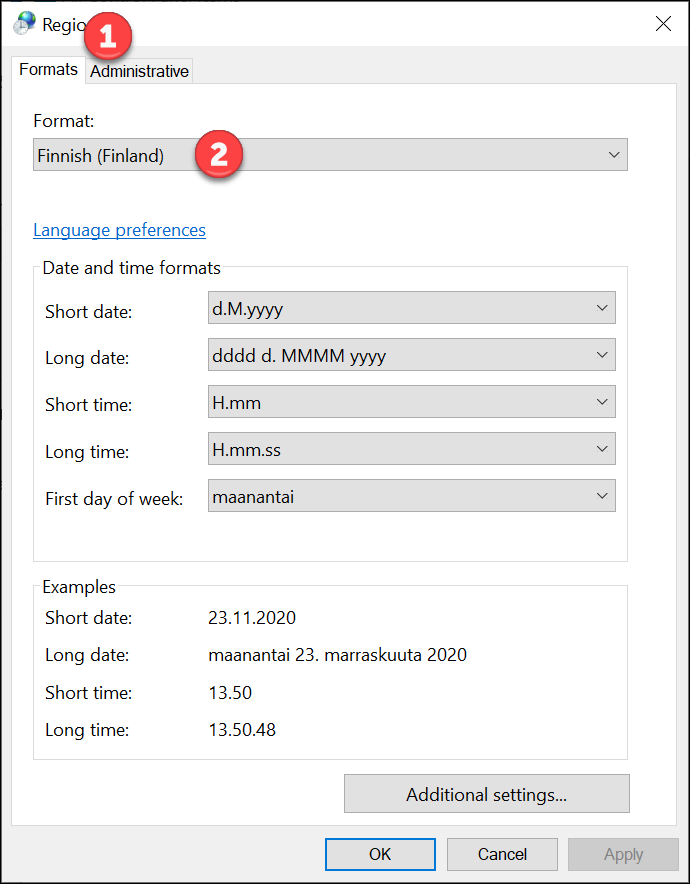
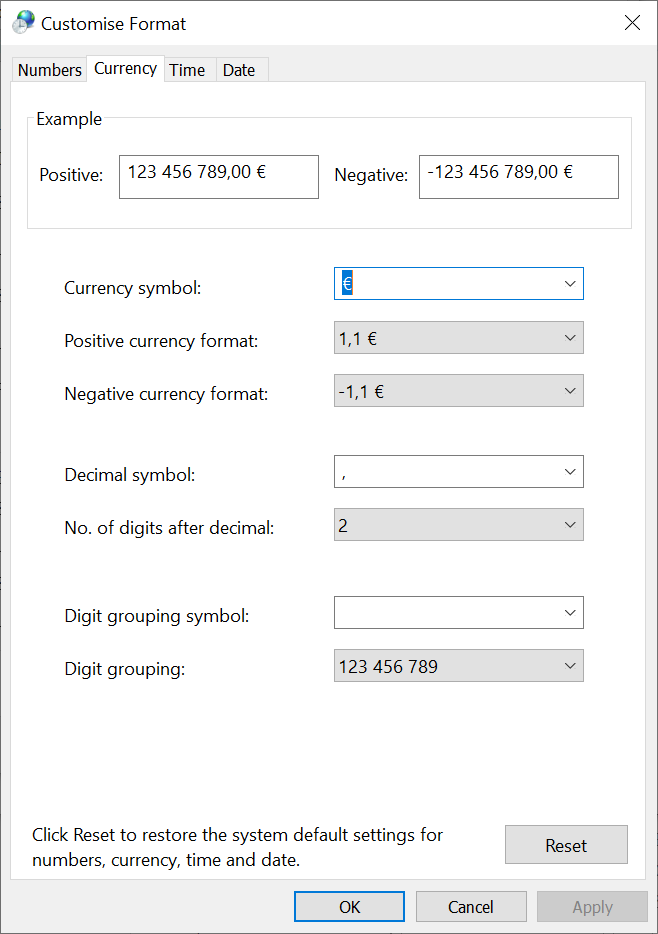
NOTE: This also changes the currency symbol and the decimal separator. Change them to the correct ones.
- Open Additional settings.
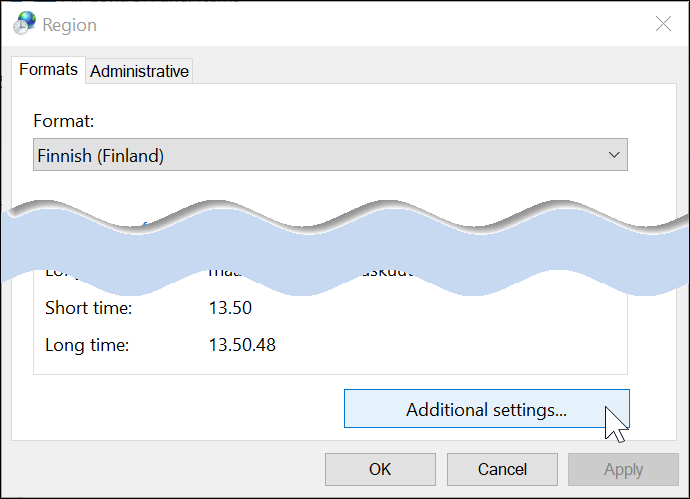
- Go through all the tabs and make sure that the currency symbol, the decimal separator and other country-specific information are correct.
- Click OK.
Changing the message update cycle
Based on Outlook's default settings, e-mails are checked automatically every 30 minutes. You can change the sending and receiving settings of incoming and outgoing items as follows:
Open Outlook's Backstage view. In the Advanced (1) window, locate Send and receive. Click Send/Receive... (2).
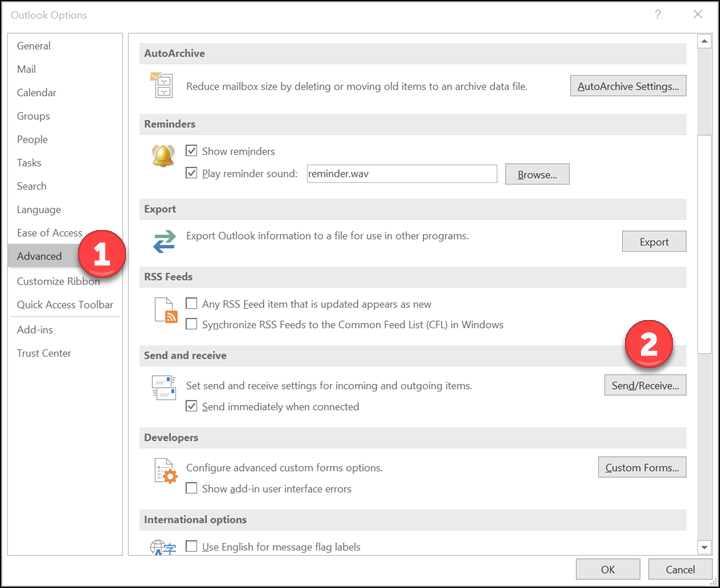
At the top, choose the account whose settings you want to change. In this example, we use the default account, All accounts. No other groups have been created, but you can create them by clicking New.
You can, for example, change the send and receive settings under Schedule an automatic send/receive every by specifying the number of minutes using the arrow keys or typing in the desired number of minutes.
You can also tick the Perform automatic send/receive when exiting tickbox to send and receive pending messages when you log out of Outlook.
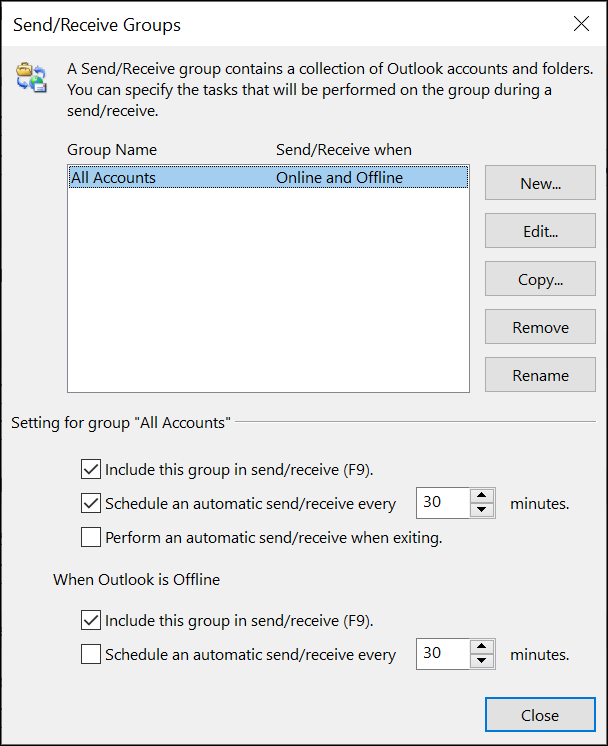
Finally, click Close to save the settings.
You can also use the Send and receive shortcut (F9) which checks emails automatically regardless of the phase of the automatic update cycle.
Checking the size of mailbox quota
The bottom bar (1) of Outlook contains useful information concerning mail.

To view the size of your mailbox, right-click the bottom bar. This opens a window (2) for specifying what is shown in the bottom bar. Click Quota Information to show the available quota in the bottom bar (3).

A university community member's mailbox has 100 GB of storage space.
Changing how your name is displayed
If you want to change the way your name is used in e-mails, for instance, from Eric E Example to Eric Example, you can change how your name is displayed in the MyAccount service (link to more detailed MyAccount instructions).
Video instruction
Give feedback
The instructions site of the University of Helsinki's IT Helpdesk helps you with IT-related issues related to your work. Let us know how we can improve our instructions. We greatly appreciate your feedback!
How would you improve these instructions?