
With these instructions, you can adjust the university's Microsoft 365 email on your computer.
These instructions were written using Outlook 2019 on a Windows computer. They can be applied to other versions and operating systems.
Quick help
Adding the first account
- Open Outlook. The account creation app will open. Follow the instructions.
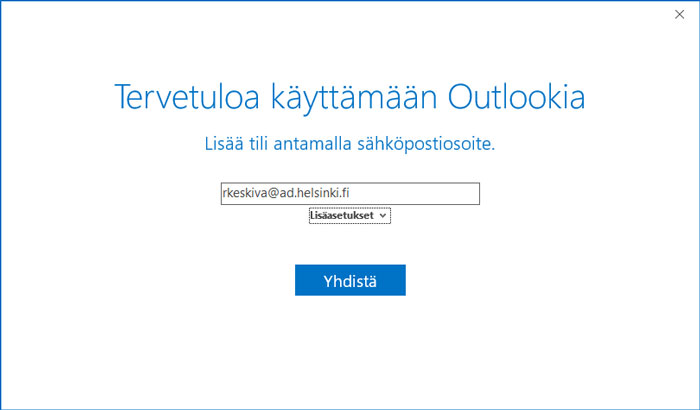
- When asked for your email address, enter your account as username@ad.helsinki.fi (e.g. rkeskiva@ad.helsinki.fi).
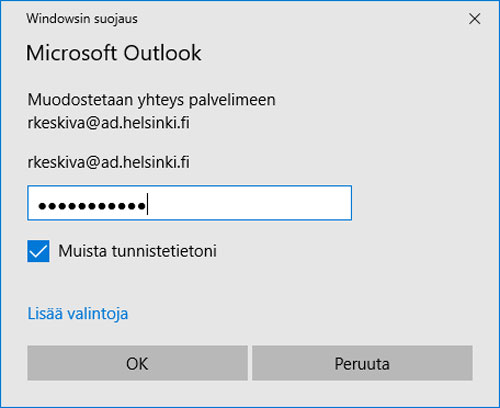
- Enter the password for the account. You can check the box “Remember my credentials”.
- The account will then be installed automatically.
Adding the second account
If you already have a previously set account(s) in Outlook, do the following:
- Open Outlook.
- Select File > Add account from the top menu.
- Follow the instructions above.
Detailed help
Creating the first account
- To open Outlook, type Outlook in the Start menu search box.
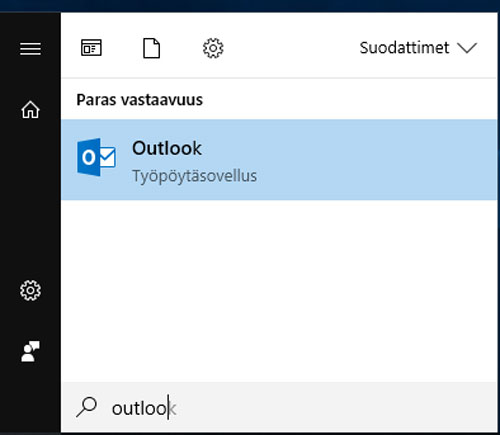
- When the software is opened for the first time, the installation wizard opens.
- If accounts have been added before, open the installation wizard as follows: File > Add account.
- When asked for your email address, enter your account as username@ad.helsinki.fi (e.g. rkeskiva@ad.helsinki.fi).
- Enter the password for the account. You can check the box “Remember my credentials”.
- The account will then be installed automatically.
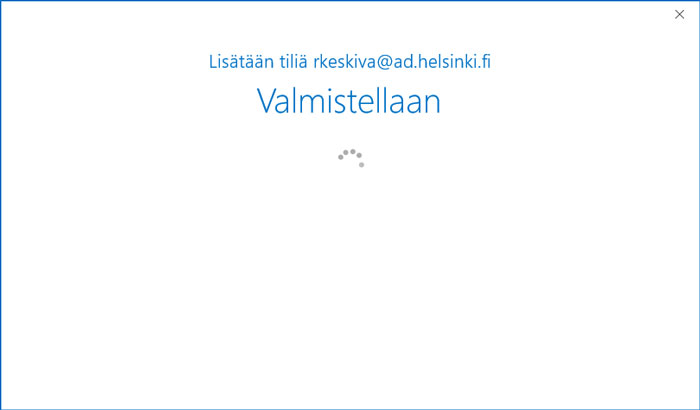
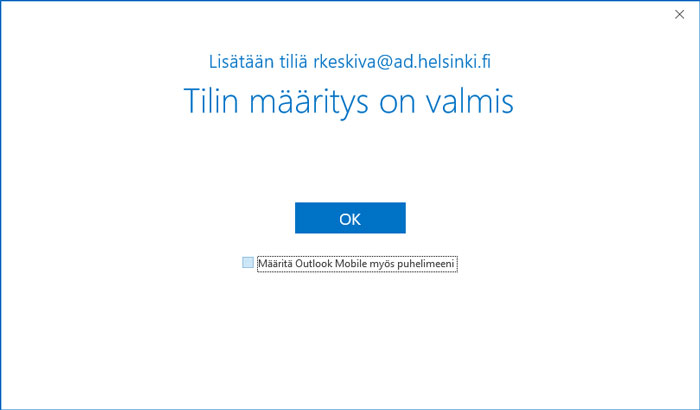
If the password is correct, the account configuration is completed.
If you do not want to configure Outlook on your phone, uncheck the box Install Outlook Mobile on my phone.
Video instruction
Give feedback
The instructions site of the University of Helsinki's IT Helpdesk helps you with IT-related issues related to your work. Let us know how we can improve our instructions. We greatly appreciate your feedback!
How would you improve these instructions?