These instructions explain how to send an email containing confidential information to a University of Helsinki service address (e.g. helpdesk@helsinki.fi or uni-help@helsinki.fi).
Securing your email allows you to send messages securely and receive a reply message confidentially to any email address.
This does not require any software to be installed on the sender or recipient. All University of Helsinki employees and students have the possibility to send encrypted messages. It is also possible for an outsider to send an encrypted message to a University service address, see the section "This is how a third party can send a secure message to a service address" for more details.
Quick help
Not all communications need to be encrypted. Enable encryption separately when dealing with material that is subject to data protection. More detailed classifications in Flamma (requires login).
- A member of the University community can send a secure message to a service address by adding .s at the end of the recipient's address (e.g. helpdesk@helsinki.fi.s)
- A third party (who does not yet have a University of Helsinki email account, may send a message via the Securemail service at https://securemail.helsinki.fi.
Read the illustrated instructions under the Detailed Instructions tab
Detailed help
Table of contents
This is how members of the University community can send a secure message to a service address
Securing your email allows you to send messages securely and receive replies confidentially. You can send encrypted emails in this way to University of Helsinki service addresses, e.g. to IT-Helpdesk (helpdesk@helsinki.fi).
-
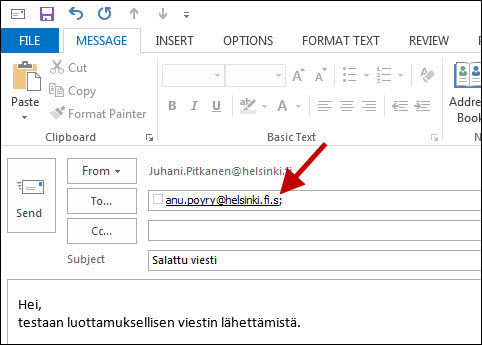
Enter the email address as normal, but add .s at the end of the address.
This is how a third party can send a secure message to a service address
Deltagon's secure email can also be used by non-members of the University of Helsinki. Outsiders can send mail from any address, but only to university addresses that are in the form etunimi.sukunimi@helsinki.fi! You can therefore ask your partners outside the University of Helsinki to send you secure mail in accordance with these instructions.
Please note that there is no address verification, so for secure mail from an external source, you should verify the identity of the sender by other means.
- Login to https://securemail.helsinki.fi

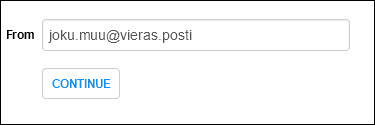
- In the From field, enter your address. Helsinki.fi addresses are not valid for this submission format.
- Click CONTINUE.
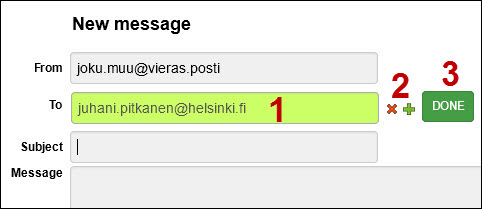
- In the To field, enter the address of the recipient at the University of Helsinki (1).
- You can add multiple recipients using the green plus button and remove them using the red check mark button (2).
- Once all recipients have been added, click DONE (3).
- Complete the Subject and Message fields and send the message as normal.
Reading and replying to a message
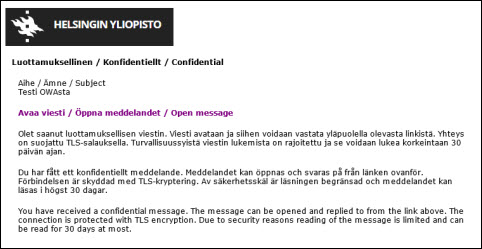
Reading a message
- Click the link in the message. The message will open in a new browser window.
Replying to a message
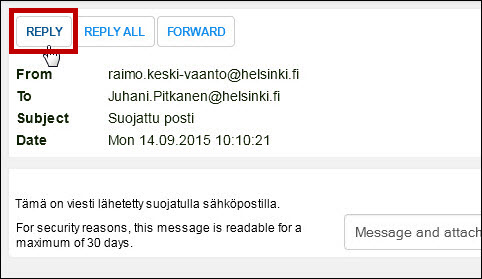
- Open the message via the link in the arrival notification.
- Click REPLY.
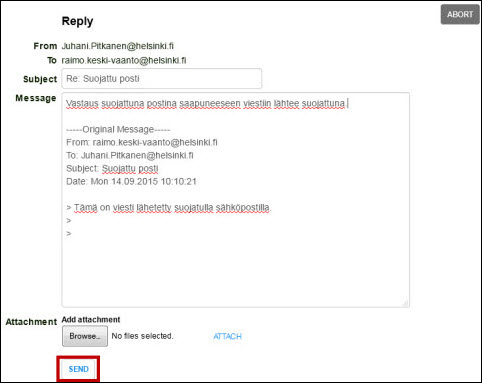
- Type your message and click SEND.
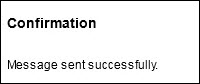
- You will receive confirmation that your submission was successful.
Adding an attachment to a message
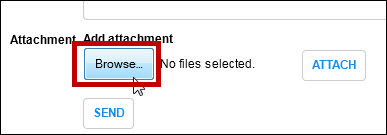
- Click Browse.
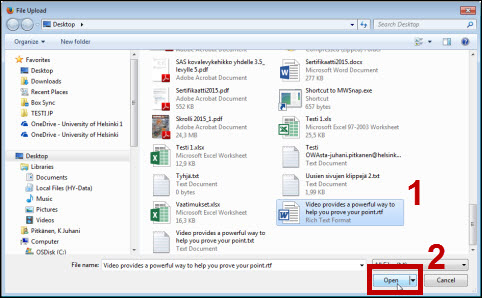
- Select the attachment (1) and click Open (2).
- Click ATTACH.

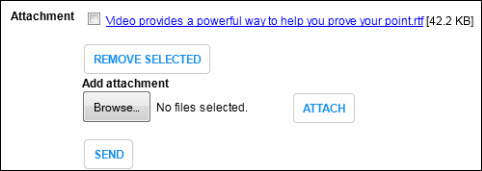
- The selected attachment is displayed in the Attachment section. Once all attachments have been added, click SEND.
Storing messages on the server and saving them to your own computer
Storing messages on the server
Unopened messages are stored on the server for a maximum of 60 days. After the first read, the message is stored for 30 days.
You can only open a message from an email link once.
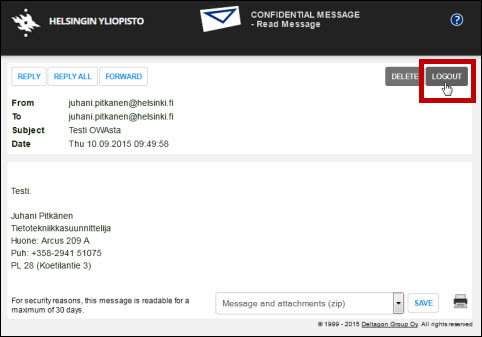
If you want to reopen a message, do not close the message from the browser's closing tab (check mark in the top corner), but by clicking LOGOUT. If you close the message incorrectly, you will not be able to reopen it!
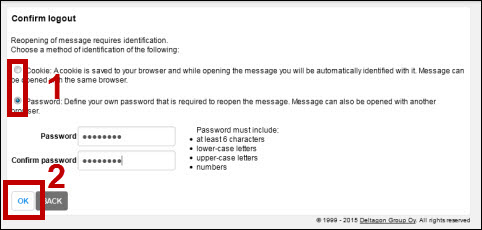
- Click LOGOUT to close the message.
- Select either cookies or password (1) as your authentication method.
- When using cookies, the message can only be opened in the same browser on the same machine.
- When using a password, the message can be opened in other browsers and machines as well.
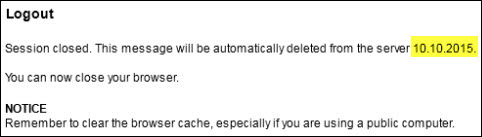
- The message will close. The program will remind you of the expiry date of the message.
- Read more about clearing the browser's cache. If you are using cookie recognition, do not delete cookies, but only the cache.
Saving messages
You can save messages for example on your computer. When saving messages, remember information security (read more in Flamma, requires login).
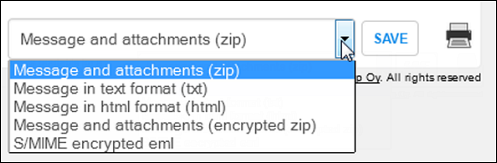
- Choose the message saving format from the drop-down menu and click SAVE.
Video instruction
Give feedback
The instructions site of the University of Helsinki's IT Helpdesk helps you with IT-related issues related to your work. Let us know how we can improve our instructions. We greatly appreciate your feedback!
How would you improve these instructions?