
The user role register is used to manage user rights in various university services.
Log in to the service at www.helsinki.fi/hero
Quick help
Applying for a user role
- Log in to the system at www.helsinki.fi/hero
- Log in with your university ID and click on the Log in
- Click on Make a new application and fill in the application form.
The application will be sent by e-mail to the chairs. If you wish to expedite the processing of your application, please notify your supervisor separately of the application you have made. The applicant will not be notified of the processed application, but can check the progress of the case by logging into the Hero system.
You can cancel a pending application at any stage by clicking on the Cancel Application link in the top right corner of the page.
Expiry of user role
- SAP roles are automatically renewed if the person is permanent and is registered in SAP HR. Automatically renewed roles are notified to the front office.
- The Hero system sends a renewal request to the user authorization holder by email.
- Renewal is handled by applying for a new authorization in Hero.
- Expired roles are not notified to the front office.
Expired user roles
You can apply for user roles in Hero, for example. rights to the following systems
- Centralized log system
- Custodial staff
- User management applications
- Optime
- Personec F.V.
- Rapo
- Riihi
- SAP
- Suffeli (SAP SuccessFactors)
- Sisu
- SoleTM
See the Advanced Help tab for more detailed instructions on how to apply for rights
Detailed help
How to apply for a user role
- Log in to the system at www.helsinki.fi/hero.
- In the page that opens, enter your username and a valid password.
- Click the Log in button.
- Click on the Make a new permit application button to start the permit application.
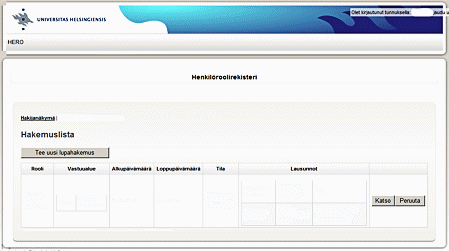
- Select the role(s) (permits) to be applied for by ticking the desired application.
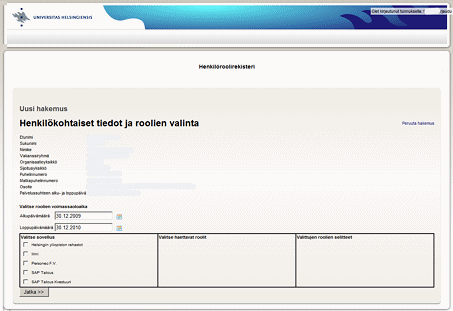
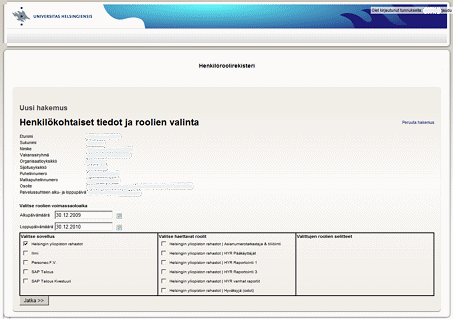
- For each application selected above, a list of roles to be searched for will appear in the Select Roles to Search column.
- Select the role you want to search for.
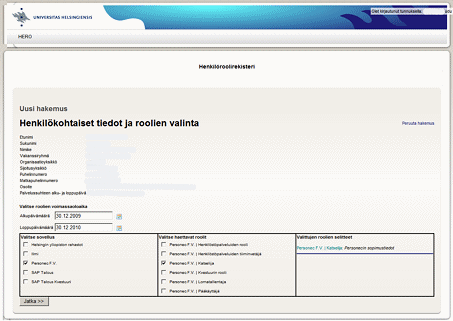
- Click the Continue button.
-
Select the organizational unit for which you are applying for role permissions.
- The organizational structure can be refined by clicking on the name of the organizational unit, which will open the organizational units below it.
- The organization is selected by clicking on the name of the unit.

- Click the Next button.
- The permissions to be applied will appear in the view to the right (this view is not available for all roles to be applied for).
- Click the Continue button.
-
The Selected Roles section shows which role is being applied for.
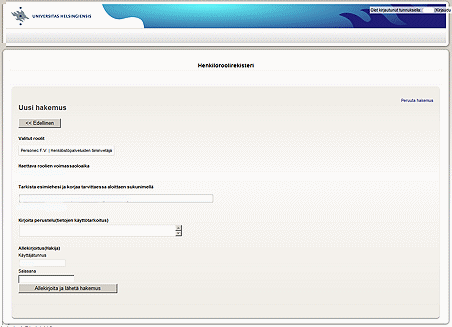
- The Check your supervisor and correct if necessary, starting with their last name section shows your supervisor's name and their email address.
- In the Please provide a justification (purpose of data use) section, please explain why the authorization you are requesting is needed.
- In the Signature section, please have your username ready.
- Please enter your password in the Password field.
- Please click the Sign and Submit Application button.
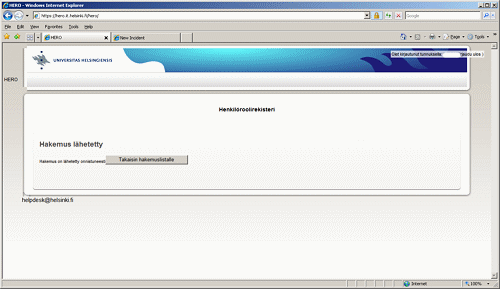
- A notification that the application has been submitted will appear at the end.
- Log out of the system by clicking on the Logout link in the top right corner of the page.
User role expiration
- SAP roles are automatically extended if the person is permanent and is entered in SAP HR. Automatically extended roles will be notified to the front office.
- The Hero system will send a renewal request to the access holder via email. The notifications are sent 30 and three days before the expiry date.
- Renewal is handled by applying for a new authorisation in Hero.
- No information about expired roles is sent to the front office.
Review or withdrawal of the status of the application
The application will be emailed to the supervisor once a day.
- If you want to speed up the processing of your application, please inform your supervisor separately, even verbally. Your application will be immediately visible to your front person in the Hero system.
- The applicant will not be notified of the pending permit, but can check the progress by logging into the Hero system.
You can cancel a pending application at any stage by clicking on the Return application link in the top right-hand corner of the page.
More user account instructions
Video instruction
Give feedback
The instructions site of the University of Helsinki's IT Helpdesk helps you with IT-related issues related to your work. Let us know how we can improve our instructions. We greatly appreciate your feedback!
How would you improve these instructions?