
These instructions describe how the University of Helsinki classifies data in Microsoft 365 files (Word, Excel, PowerPoint) and in the PDF files created from them.
Whenever you create an M365 file or start editing a file that has not yet been classified by the University of Helsinki, you need to assign a data category to the file. The category should always be selected according to the risk level of the data content. If the content changes in such a way that its risk level changes, the class should always be changed to match the data content.
Quick help
Data classification in files in brief
Classification
- The file must always be classified.
- Define the classification choice based on the risk level of the content.
- Update the classification if the content changes.
Secret (1R, 2A)
- Secret = only authorised view.
Sharing
- Class specifies who you can share with.
- Anonymous link: Open (5W) and Personal only.
- 2A-4G: HY users or designated persons.
- 1R: only on a discretionary, limited basis.
Cautions
- Sharing with third parties may require an unencrypted file (not recommended).
- 1R and 2A: watermark appears on file.
Read the detailed instructions tab for illustrated instructions.
Detailed help
Table of contents
- Data classification model
- How to classify a file
- Data categories in files
- File encryption and protection with Microsoft technology
- Sharing files as a link
- Category displayed as a watermark at the top of the file
- Files restricted from artificial intelligence
- Sharing a file with an external party
- Creating a Microsoft 365 group
Data classification model
How to classify a file
Whenever you create an M365 file or start editing a file that has not yet been classified by the University of Helsinki, you must assign a data category to the file.
The category must always be selected according to the risk level of the data content. If the content changes in such a way that its risk level changes, the category must always be changed to match the data content.
Categorise the file by selecting Sensitivity from the Home menu.
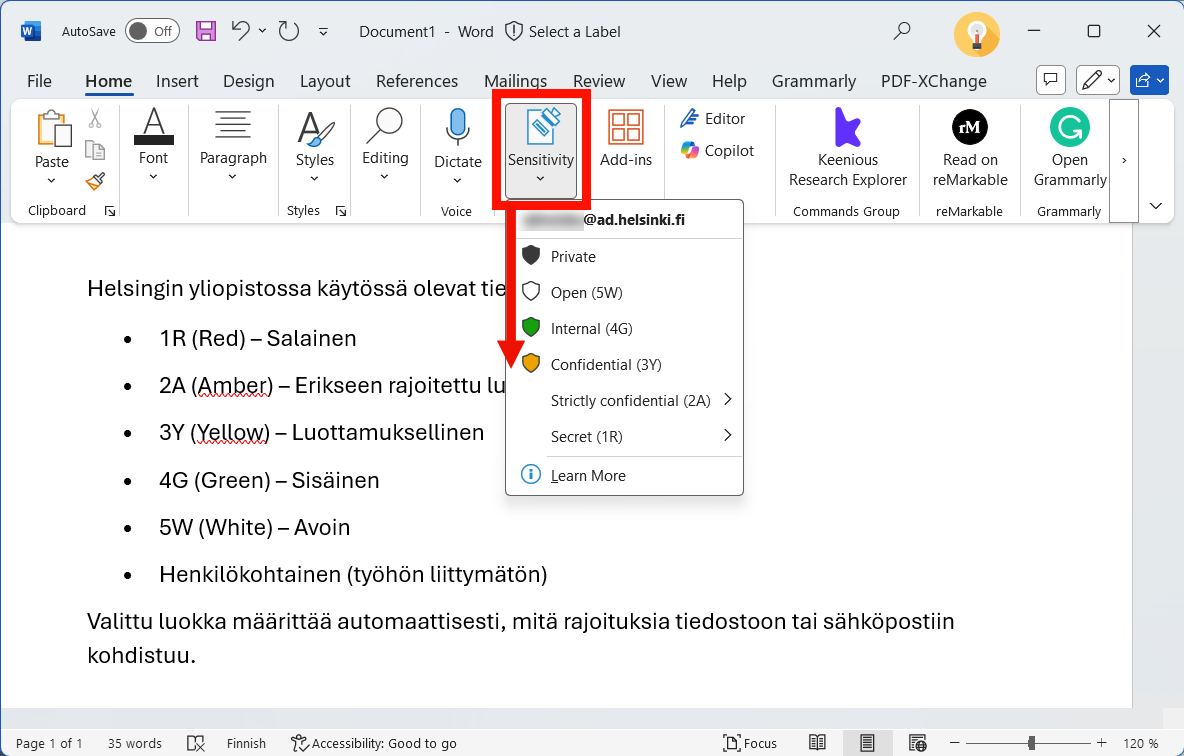
Data categories in files
Here is a more detailed list of the data categories used by the University of Helsinki in files, as well as their more detailed settings and restrictions.
File categories and restrictions
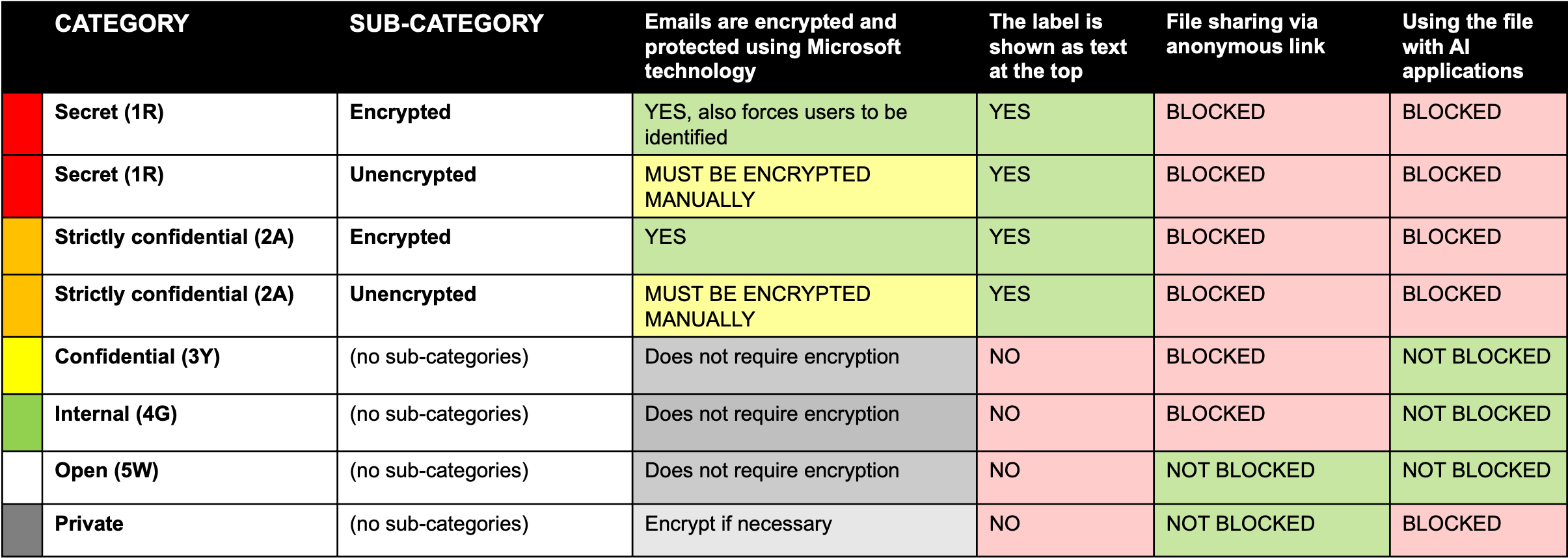
Secret (1R)
- Subcategory: Encrypted
- Files are encrypted and protected using Microsoft technology, also forces users to be identified
- The category appears as text at the top of the file
- Sharing the file as an anonymous link is blocked
- Access to the file by AI applications is blocked
- Subcategory: Unencrypted
- Encrypt yourself
- The category appears as text at the top of the file
- Sharing the file as an anonymous link is disabled
- Access to the file by AI applications is blocked
Strictly Confidential (2A)
- Subcategory: Encrypted
- Files are encrypted and protected using Microsoft technology
- The category appears as text at the top of the file
- Sharing the file as an anonymous link is blocked
- Access to the file by AI applications is blocked
- Subcategory: Unencrypted
- Encrypt yourself
- The category appears as text at the top of the file
- Sharing the file as an anonymous link is disabled
- Access to the file by AI applications is blocked
Confidential (3Y) and Internal (4G)
- Does not require encryption
- The category does not appear as text at the top of the file
- Sharing the file as an anonymous link is blocked
- The file is not blocked from being used by AI applications
Open (5W)
- Does not require encryption
- The category does not appear as text at the top of the file
- Sharing the file as an anonymous link is not blocked
- File access by AI applications is not blocked
Private (non-work related)
- Use encryption when necessary
- Category not shown as text at top of file
- Sharing the file as an anonymous link is not blocked
- Use of the file by AI applications is blocked
File encryption and protection with Microsoft technology
In classes 1R and 2A, files are encrypted and protected by Microsoft technology directly by selecting the Encrypted subclass.
Encryption means that the contents of the file are only readable by authorized users.
Protection means that the use of the file (e.g. copying, printing) can be restricted.
The file is then restricted:
- only for named users or
- only for University of Helsinki users
When you select the 1R - Encrypted class for a file:
- the file will be encrypted and protected only for the users of the University of Helsinki you select.
- this will open a window where you can further specify who can read and edit the file.
- no one other than your chosen users will be able to open the file.
When you select the 2A - Encrypted class for a file:
- the file will be encrypted and protected only for the users of the University of Helsinki.
- No one other than the University of Helsinki users will be able to open the file.
Sending a 1R or 2A file outside the university
If you need to share a 1R or 2A file with someone outside the University, it is possible to use the subclass Unencrypted (Not recommended). In this case the file itself is not encrypted, but this is done separately when the file is sent by email.
Sharing files as a link
Once you've saved a file to, for example, your OneDrive folder or a shared Teams folder, you can share the file with a link. When you share, you make a choice about who you give access to the file via the link.
The category you choose for a file will affect how widely you can share the file as a link.
Sharing a file with an anonymous link
Sharing a file with an anonymous link (Anyone with the link) means that anyone who knows the link can access the file without authentication.
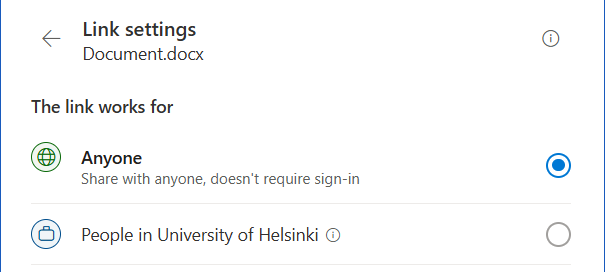
File sharing with the link is only possible for the following categories:
- 5W - Open
- Personal (non-work related)
Sharing with a limited number or individual users
Files classified as 2A-4G can be shared:
- to all users of the University of Helsinki or
- to people you choose.
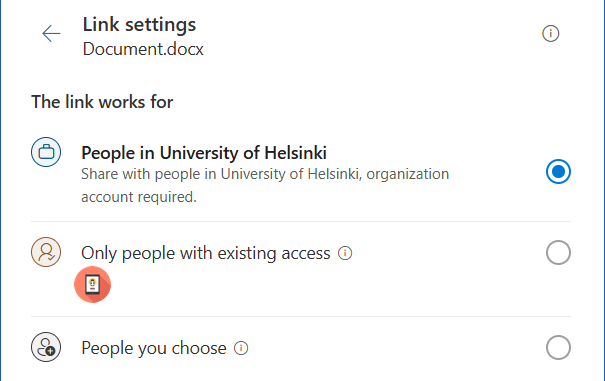
Notes about sharing
- If you set permissions on the share link for all University of Helsinki users, then all University of Helsinki users who know the link will also have access to the file. In this case, you cannot grant access to the file to people outside the University.
- If you share the file with selected people as a link, only those people will have access to the file. The selected persons may also include users outside the university.
- It is also technically possible to create a share link to designated users for 1R classified material. However, when sharing and storing material in this category, careful, case-by-case judgment must be exercised as to where the material needs to be processed.
Category displayed as a watermark at the top of the file
For files classified as 1R or 2A, the class name is automatically displayed at the top of the file as a watermark.
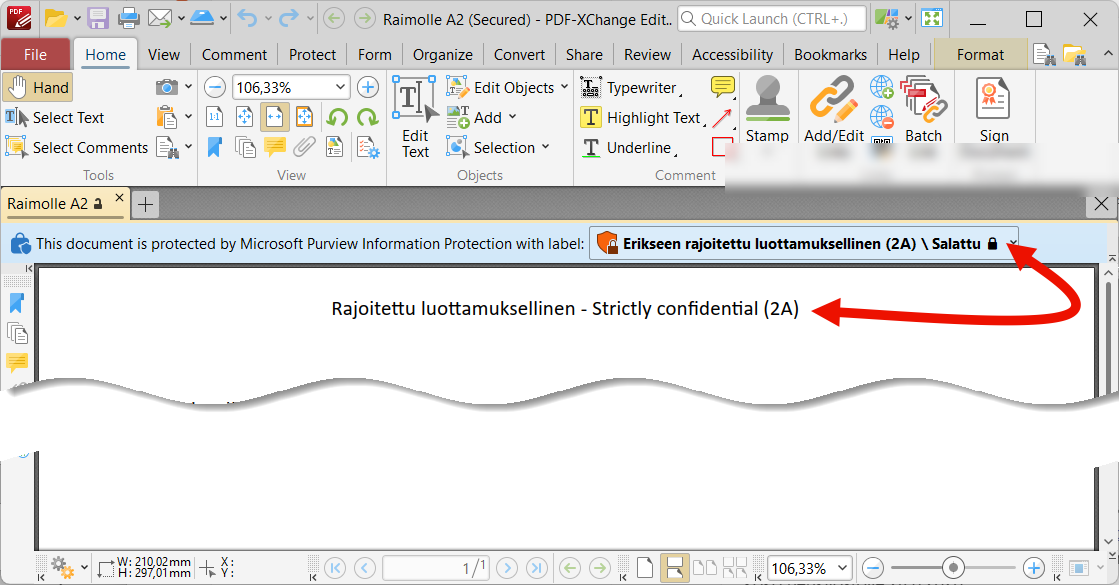
The watermark helps the recipient to identify the class of the content even when it is shared outside the organization.
Currently (year 2026), the University of Helsinki model does not display a watermark for files classified as 3Y-5W and Private.
Files restricted from artificial intelligence
You can use files from categories 3Y-5W with AI applications supported by the university (e.g. Copilot, Curre).
Categories 1R, 2A and Personal files are completely blocked from Copilot.
Sharing a file with an external party
When sharing a file with someone outside the university, select the sharing method depending on whether you intend to continue editing the file after sending it, how many recipients there are, and whether the recipients require read-only or edit rights.
Assign permissions according to the number of recipients and their needs:
- If there are fewer than 10 recipients, you can list them individually when sharing the file.
- If there are more than 10 recipients or communication is regular, it is advisable to use a Microsoft 365 group. Read more about creating Microsoft 365 groups under the heading Creating a Microsoft 365 group.
- If communication is regular or if there are more than 10 recipients, you can also share files in Microsoft Teams. Find a suitable existing team or create a new one. You can also add external recipients to the team as guests, allowing them to view and edit files.
Please note! A M365 group team is automatically created from the team. Read more about creating a team in separate instructions.
Is the file intended to be edited after it has been shared?
- If the file’s content will not be updated after sending, you can send the file as an email attachment, for example.
- If the attachment requires protection and encryption, select data category 1R (unencrypted) or 2A (unencrypted). Remember to use separate encryption in your email (Microsoft / Securemail).
- Separate encryption is not required for data categories 3Y, 4G and 5W.
- If the file’s content is updated after sending, share a link to the file via email, a Teams channel or another instant messaging service.
- For data categories 1R–4G, use the setting People you choose and add an M365 group or a list of recipients.
- For information class 5W, use the setting Anyone. Select either the Can view permission or the Can edit permission.
- If file access is managed via an M365 or Teams group, you can use the Only people with existing access setting in data categories 1R–4G. Only use this option once you have ensured that group memberships and permissions are up to date.
Creating a Microsoft 365 group
Select either a Microsoft 365 group or a Teams team, as required:
- If you only need to manage recipients or file access rights, a Microsoft 365 group is sufficient.
You can search for a suitable M365 group or create a new one yourself on the M365 account management page at: https://myaccount.microsoft.com/groups.
Read more in Microsoft’s own instructions on creating and updating a group. - If you need to hold discussions and meetings in addition to sharing files, it is worth creating a Teams team. Read more about creating a team in separate instructions.
Video instruction
Give feedback
The instructions site of the University of Helsinki's IT Helpdesk helps you with IT-related issues related to your work. Let us know how we can improve our instructions. We greatly appreciate your feedback!
How would you improve these instructions?