
Kamu is the membership register of the University of Helsinki community. The Kamu system is used to create accounts for those who do not have an employment or student relationship with the university.
Kamu can be found at https://kamu.helsinki.fi/.
You can use Kamu to create a limited user account or a standard user account, i.e. an AD account. The type of account is determined by what the sender of the Kamu invitation selected during the invitation process.
A limited user account is intended especially for people outside the university who do not have a Finnish personal identity code and who need access to a university service that requires authentication. Examples include consultants and presenters who need access to Wiki or Flamma, and external students enrolled in Moodle courses. The AD account, on the other hand, is a standard user account that allows you to log in to the university’s services and includes an email account.
Note! The owner of the Kamu role determines which services can be accessed using the limited user account. In most cases, it only grants access to Moodle and Flamma. The limited user account cannot be used to log in to a university computer or access email.
Quick help
Table of contents
- Did you receive an email saying that your details need updating on Kamu? Here's what to do
- I used to have a limited user account or an AD account (which has expired). How can I log in to Kamu?
- Have you received an invitation to a role in Kamu?
- Invite an outside member to a role in Kamu
- Extending and terminating the role membership
- Changing and resetting your password
- Logging in to the university services
- All user account instructions
Did you receive an email saying that your details need updating on Kamu? Here's what to do
If you have had a user account before, you must now check and confirm the following details in the Kamu service:
- Your personal email address
- Your personal telephone number. This is required if you forget your password.
I used to have a limited user account or an AD account (which has expired). How can I log in to Kamu?
You can log in to Kamu once using just your email address at https://kamu.helsinki.fi.
Select Email + SMS login.
Have you received an invitation to a role in Kamu?
- Open the message in your inbox with the title Kamu role invite. To accept the invitation, open the link that came with the email.
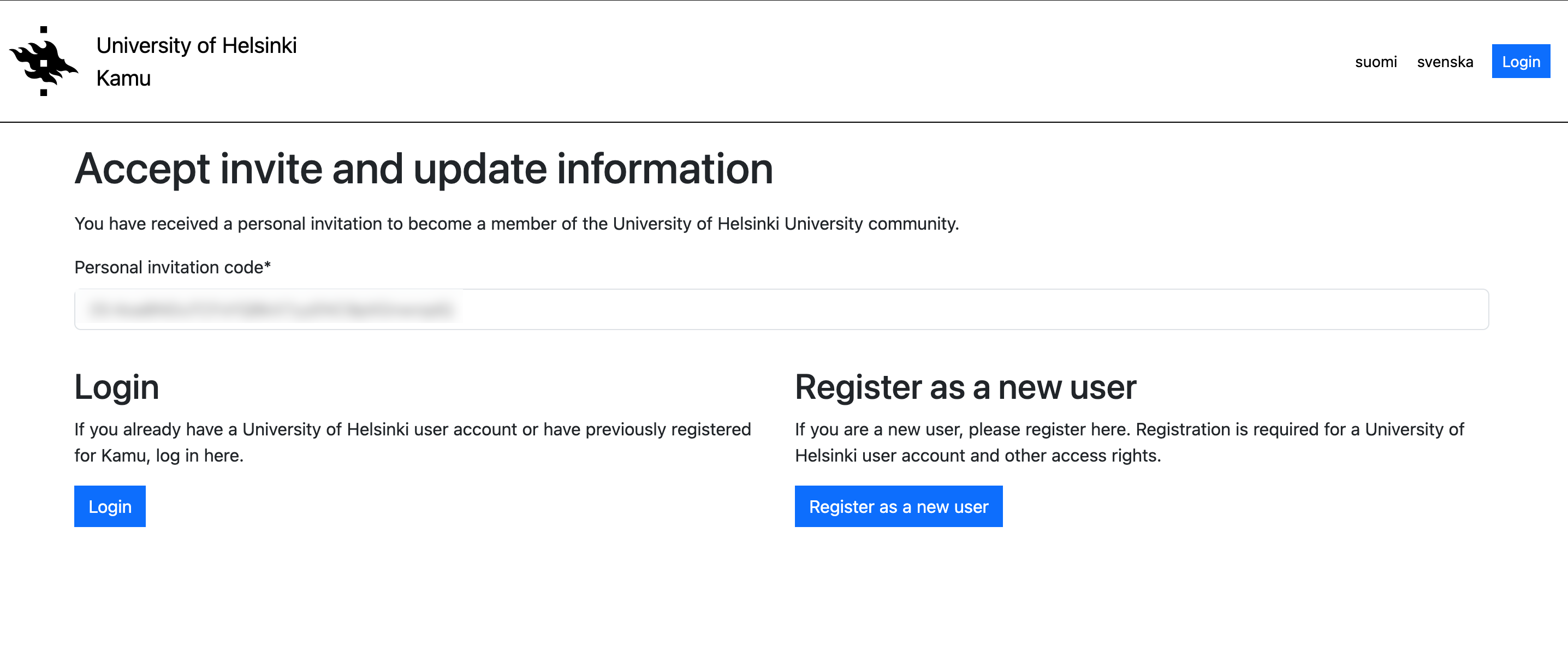
- Alternatively, you can go to https://kamu.helsinki.fi, click on Register and paste your invitation code from the email into the Personal invitation code field.
- If you have a University of Helsinki username or are already on the Kamu register, click Login - otherwise click Register as a new user.
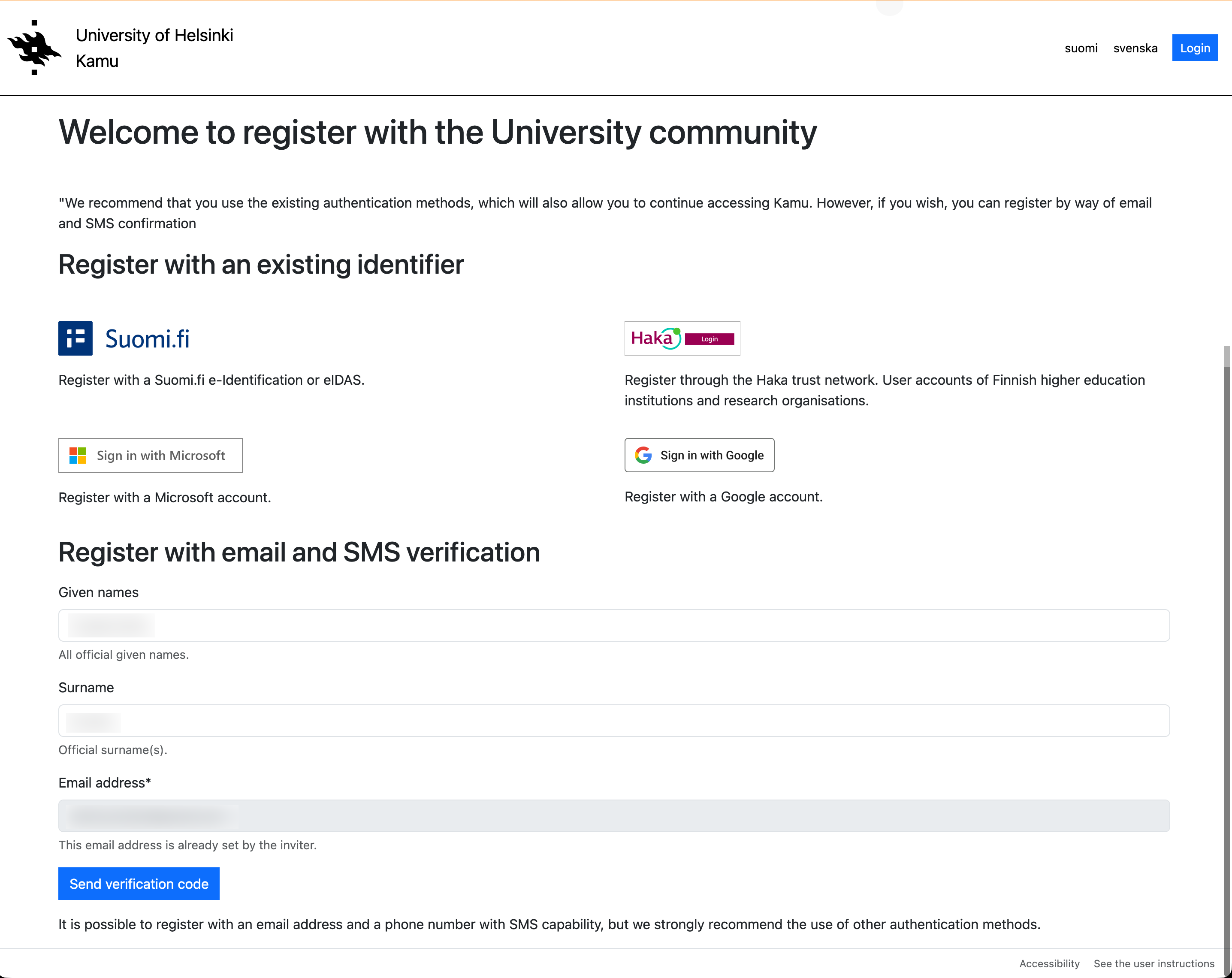
- In the next screen you will be asked to register. It is recommended to use an external identifier, but if necessary, you can also register using email and SMS confirmation. Select the external identifier you wish to use and follow the instructions of the service you are using to authenticate. Alternatively, enter your name in the email and SMS verification field and select Send verification code.
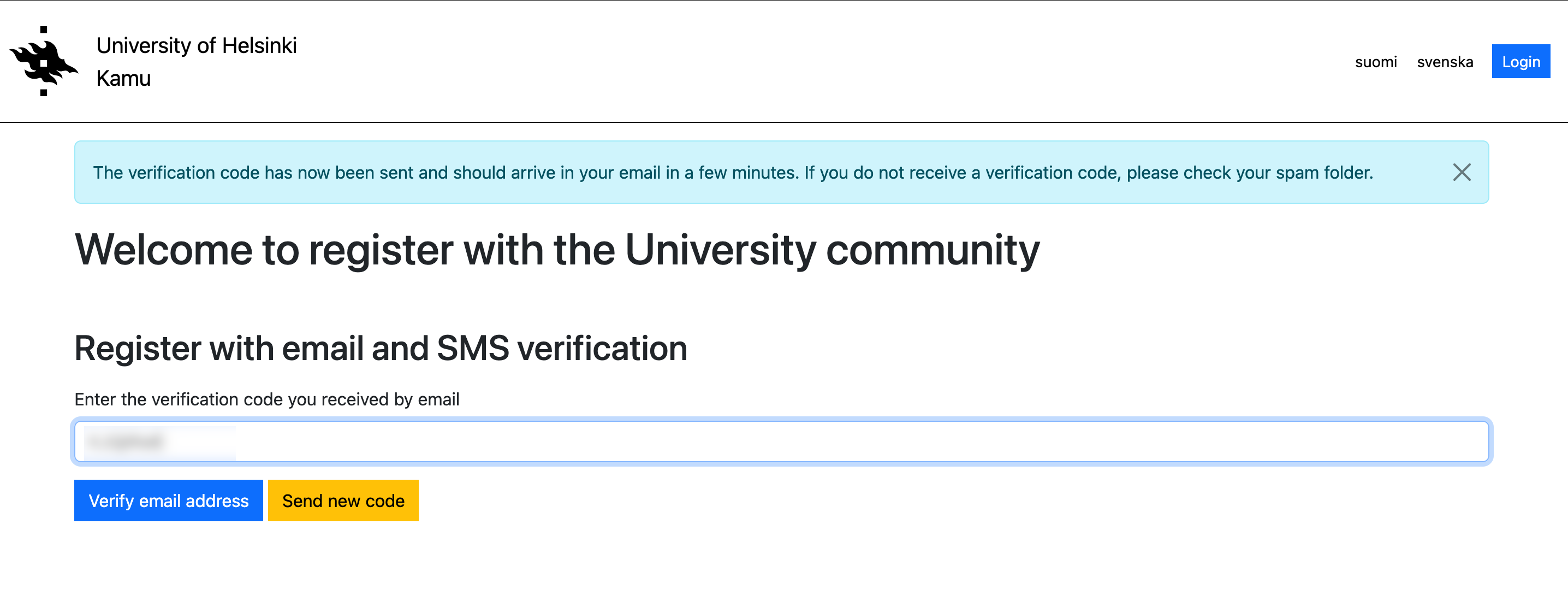
- If you are using email and SMS verification, you will first receive a verification code in your email, which you should paste into the Email verification code field. Then select Verify.
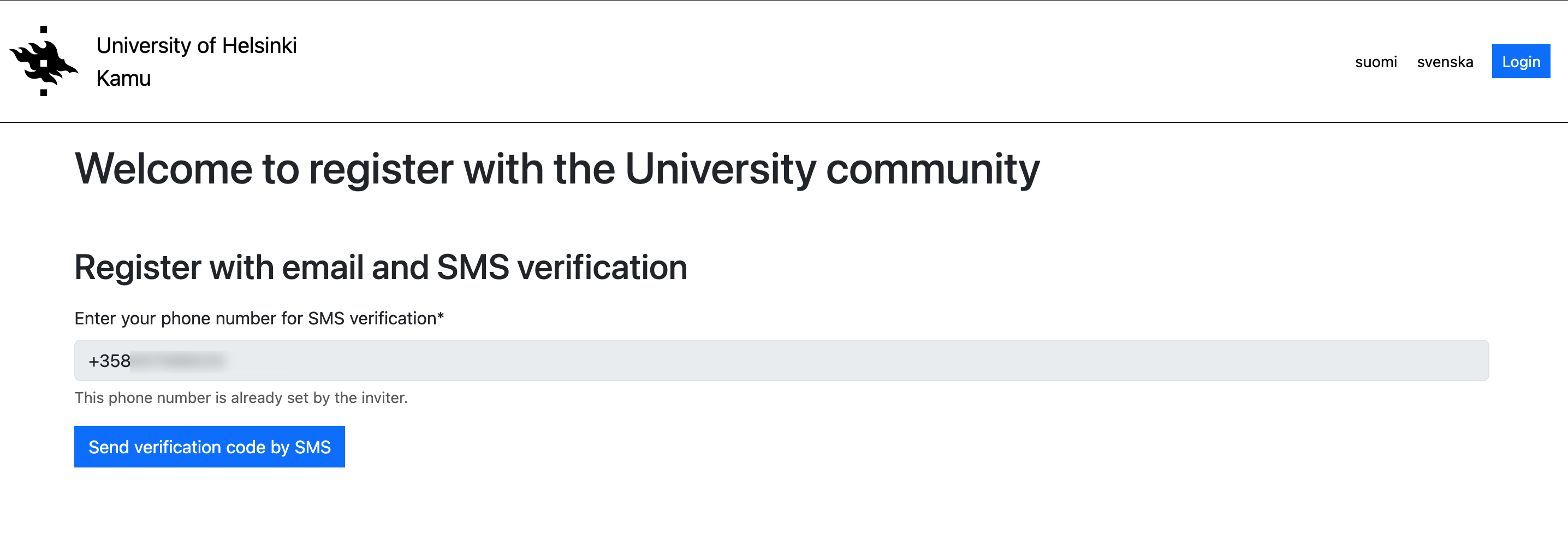
- Next, the service will ask for your phone number in international format (e.g. +358401234567). Enter your number and select Send verification code.
- Next, enter the verification code you received by email in the SMS verification code field and select "Verify".
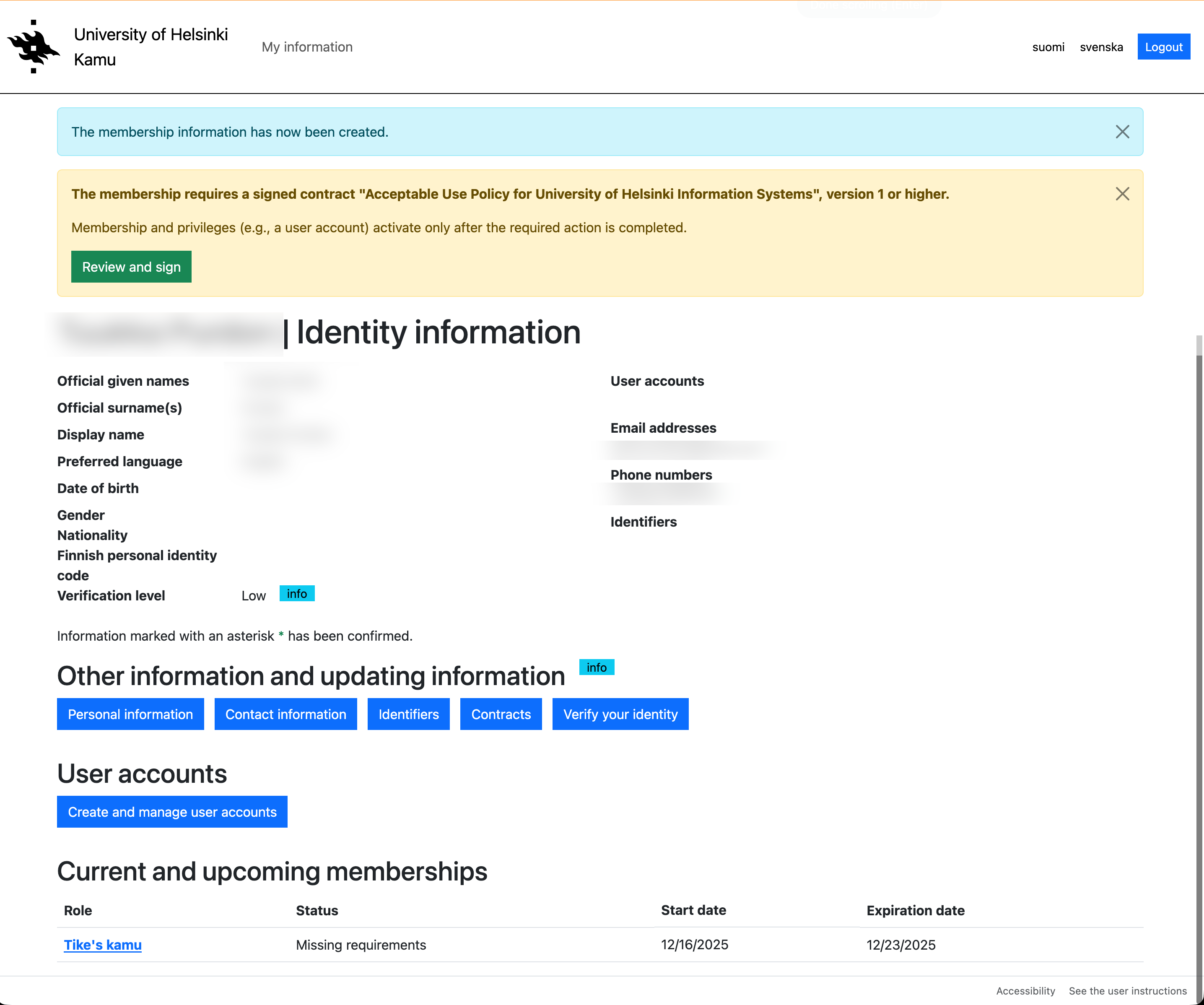
- Once you have verified your identity, you will be taken to the personal data page. If your role requires you to sign contracts, you will be notified of these on the page. To sign the contracts, select Review and sign.
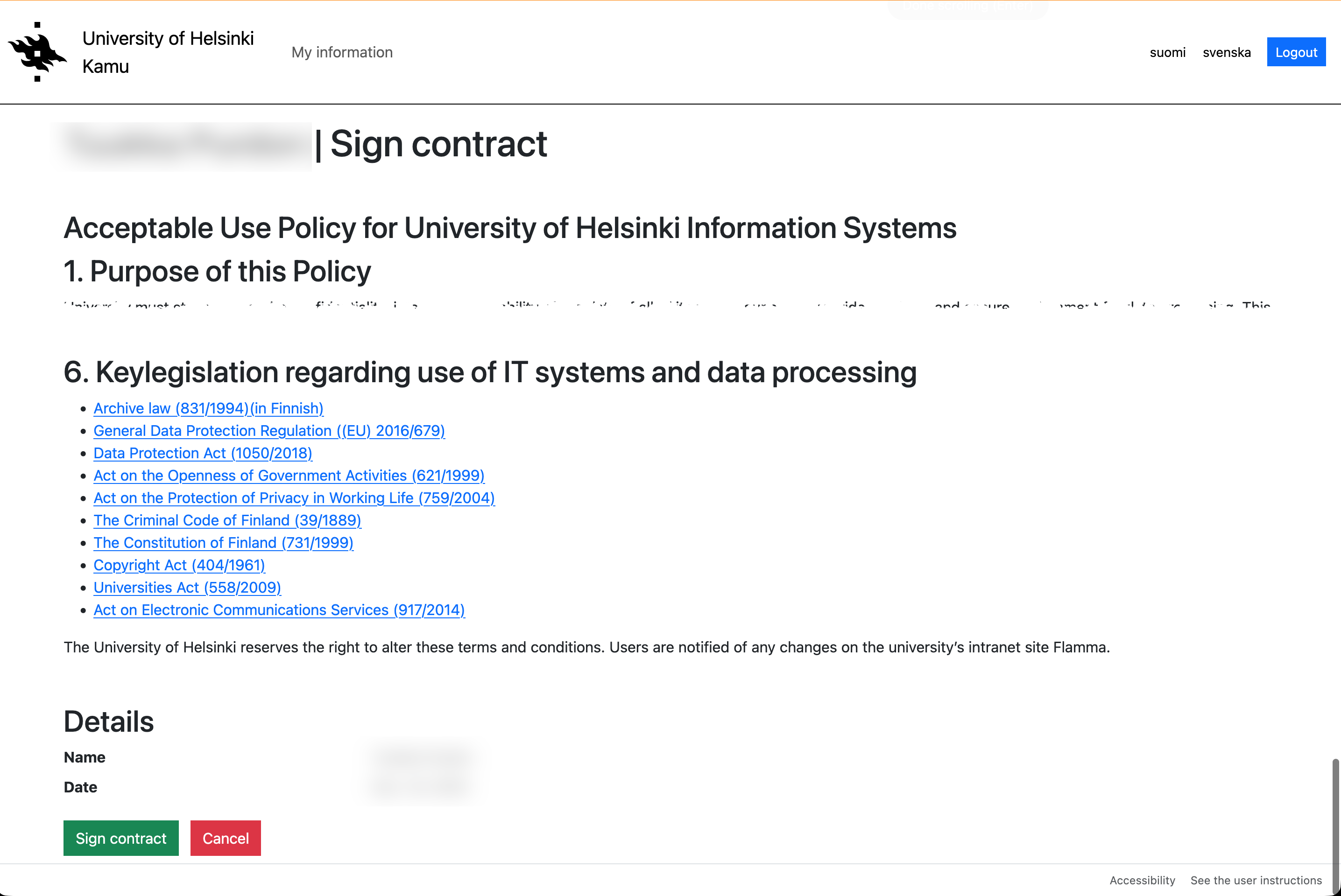
- Read the contract carefully and select Sign contract at the bottom of the contract page.
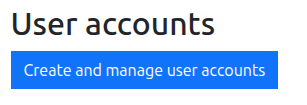
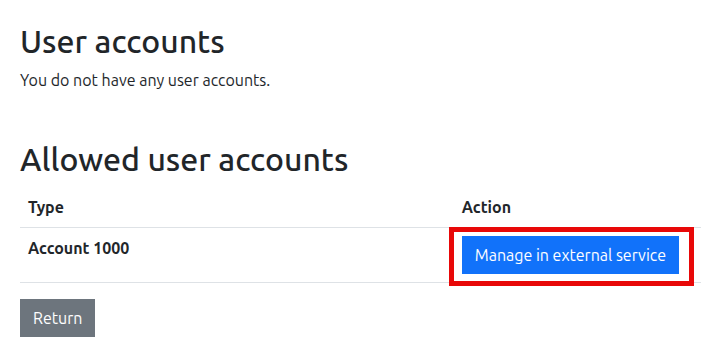
- If your role grants you the right to create an AD account, go to the MyAccount service to activate your account once you have signed the contract. You can also access MyAccount directly from Kamu by clicking Create and manage user accounts on the personal data page and then Manage in external service.
- An AD account is a standard user account that allows you to log in to the university’s services and includes an email inbox. You can find more detailed instructions on activating your AD account in the MyAccount service in the separate instructions.
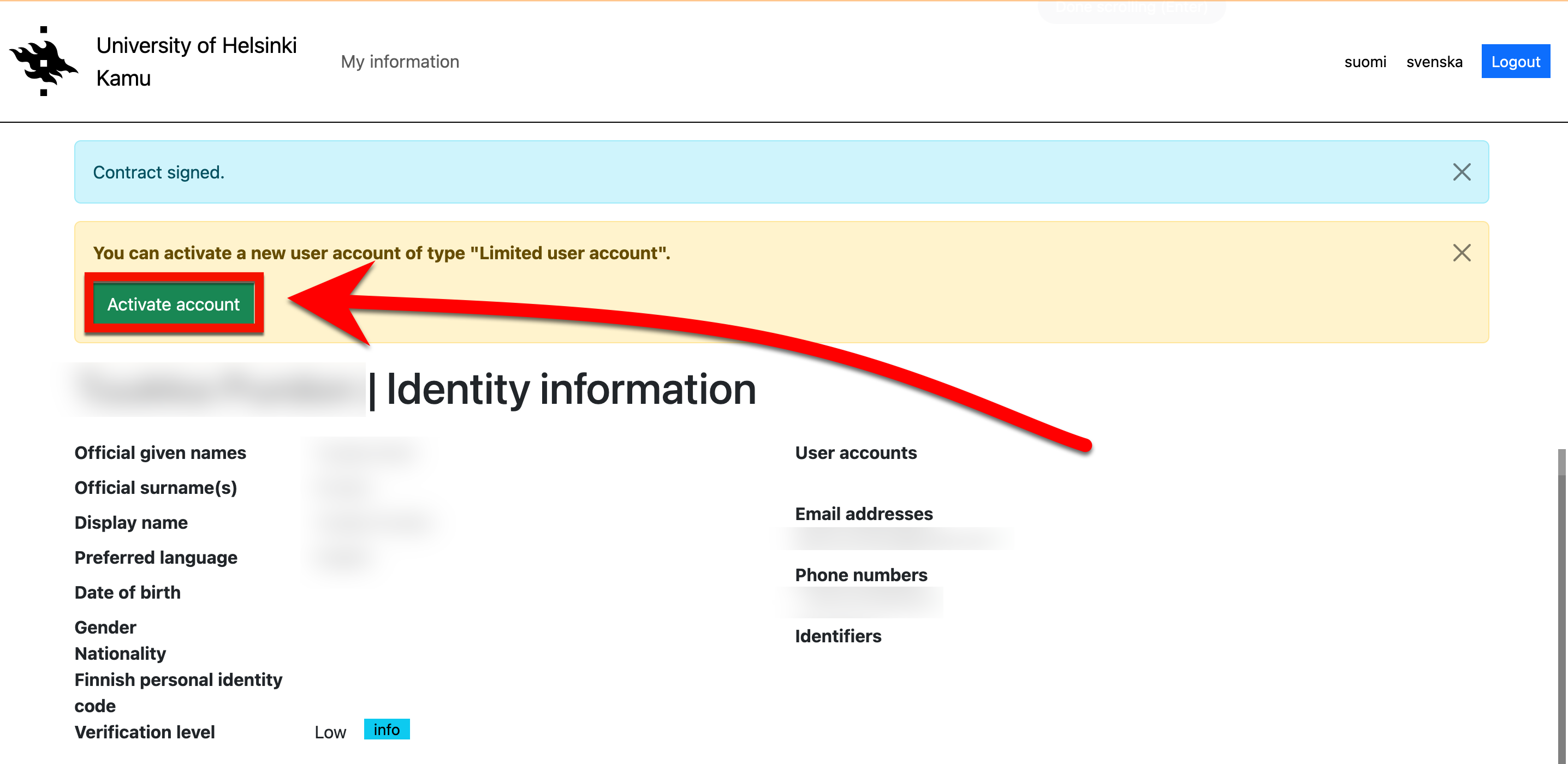
- If your role grants you the right to create a limited user account, you can activate it in Kamu once you have signed the contract by selecting Activate account on the personal data page.
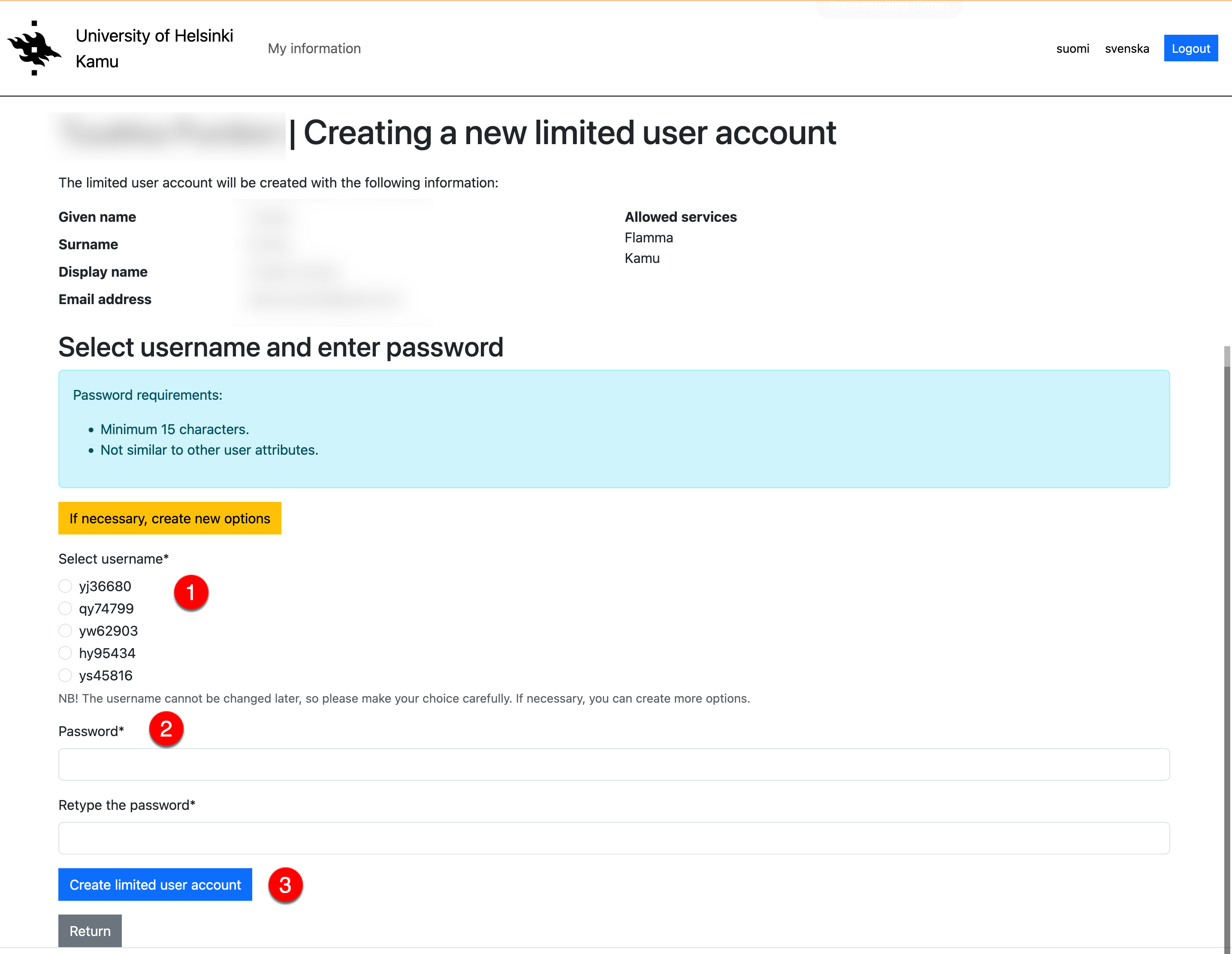
- Then select (1) a username for your limited user account from the options provided, (2) a password for your limited user account that meets the password requirements, and finally click on (3) Create limited user account.
Invite an outside member to a role in Kamu
Inviting an individual person
- Go to https://kamu.helsinki.fi/.
- Select Login.
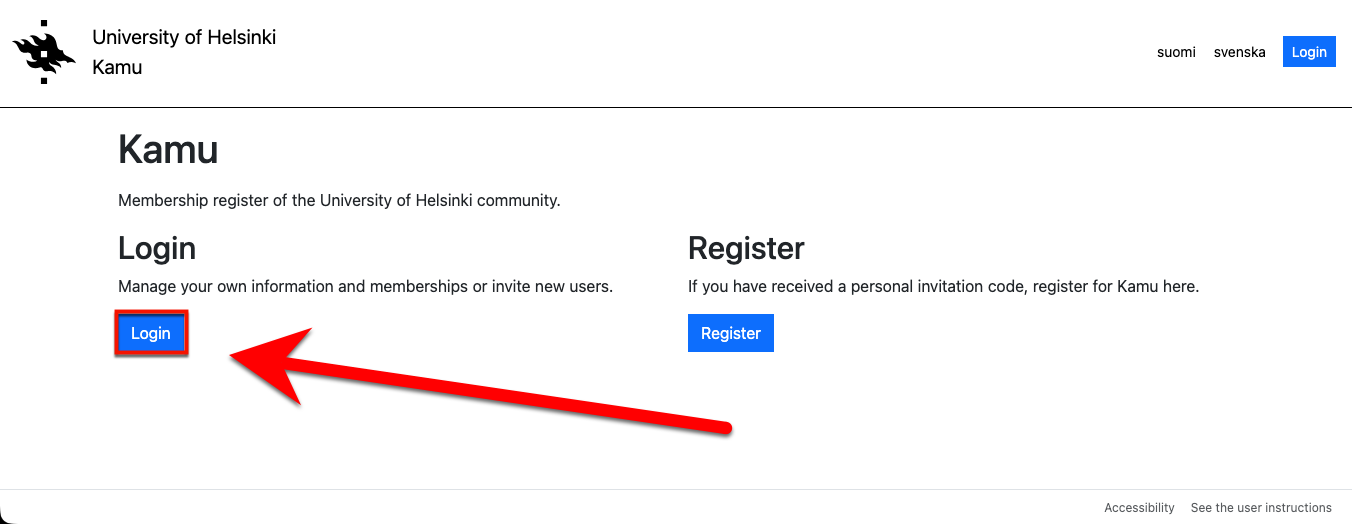
- In the next screen, select your University of Helsinki username. Log in with your University of Helsinki one-time login.
- The Membership and role management page of Kamu will open if you have the right to invite people to a role. Invite a person to a role by selecting Inviter.
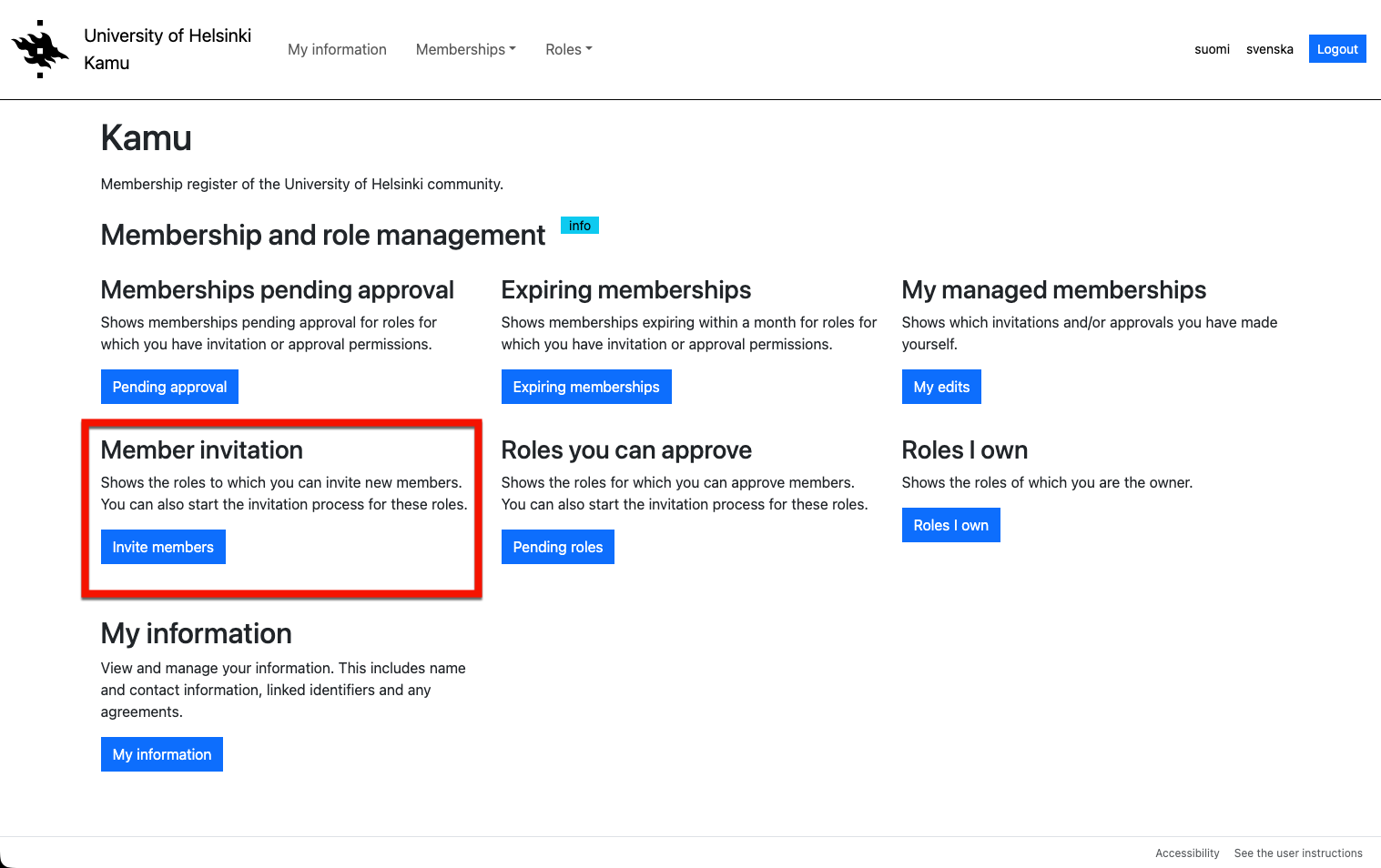
- A page will open listing the different roles for which you have inviter permission. Select the role you want the person to be invited to and click on the role you want to send the invitation to.
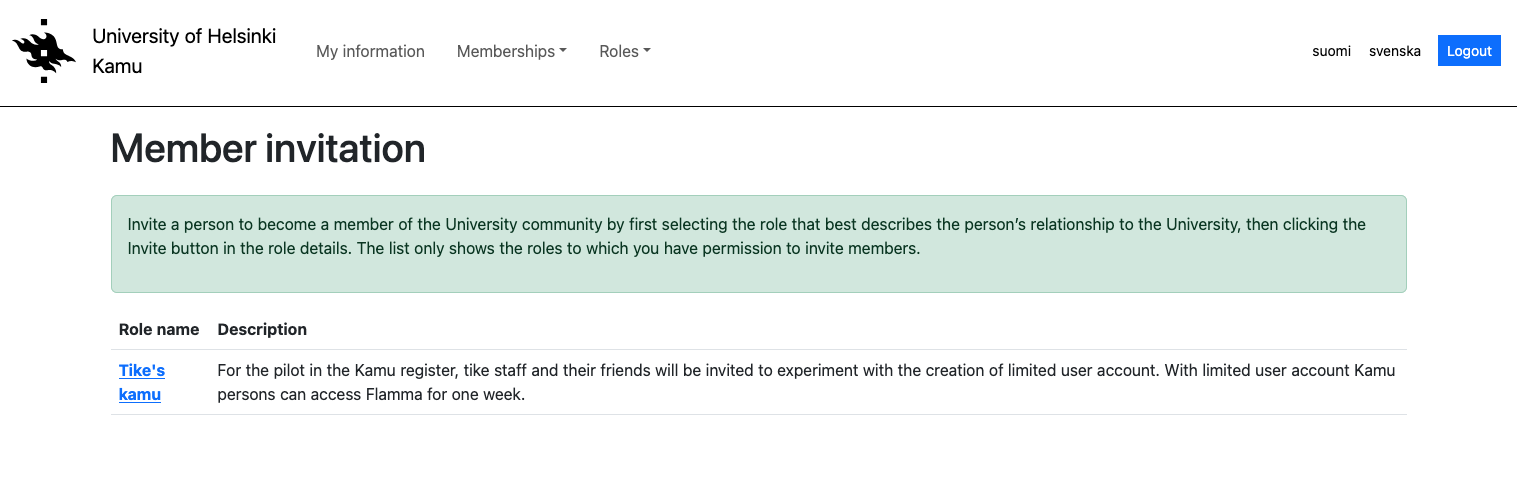
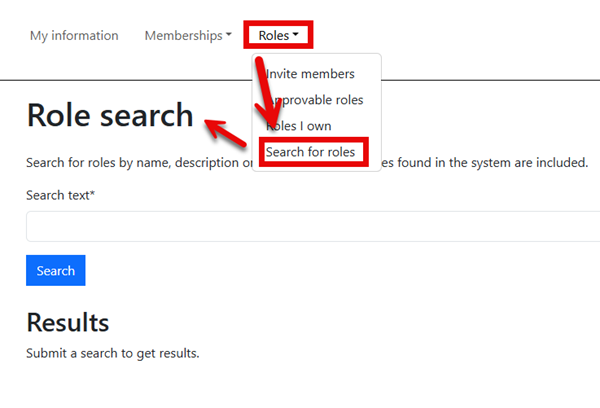
- If the role you are looking for is not on the list, click on Roles and then Search for roles. You can then search for a role by name, description or a part of them.
- If you are a university employee, you can also view a list of Kamu roles in Flamma workgroups (only in Finnish, login required).
- If you cannot find a suitable role, please contact IT-Helpdesk and let them know what sort of role you require.
Note! Make sure you invite the person to the correct role. A limited user account has fewer rights than a standard user account (AD account) and cannot, for example, be used to log in to a computer or access email. The role owner has specified which services can be accessed using the limited user account. In most cases, it only grants access to Moodle and Flamma. You can tell from the role’s title and description whether it is an AD account or a limited user account.
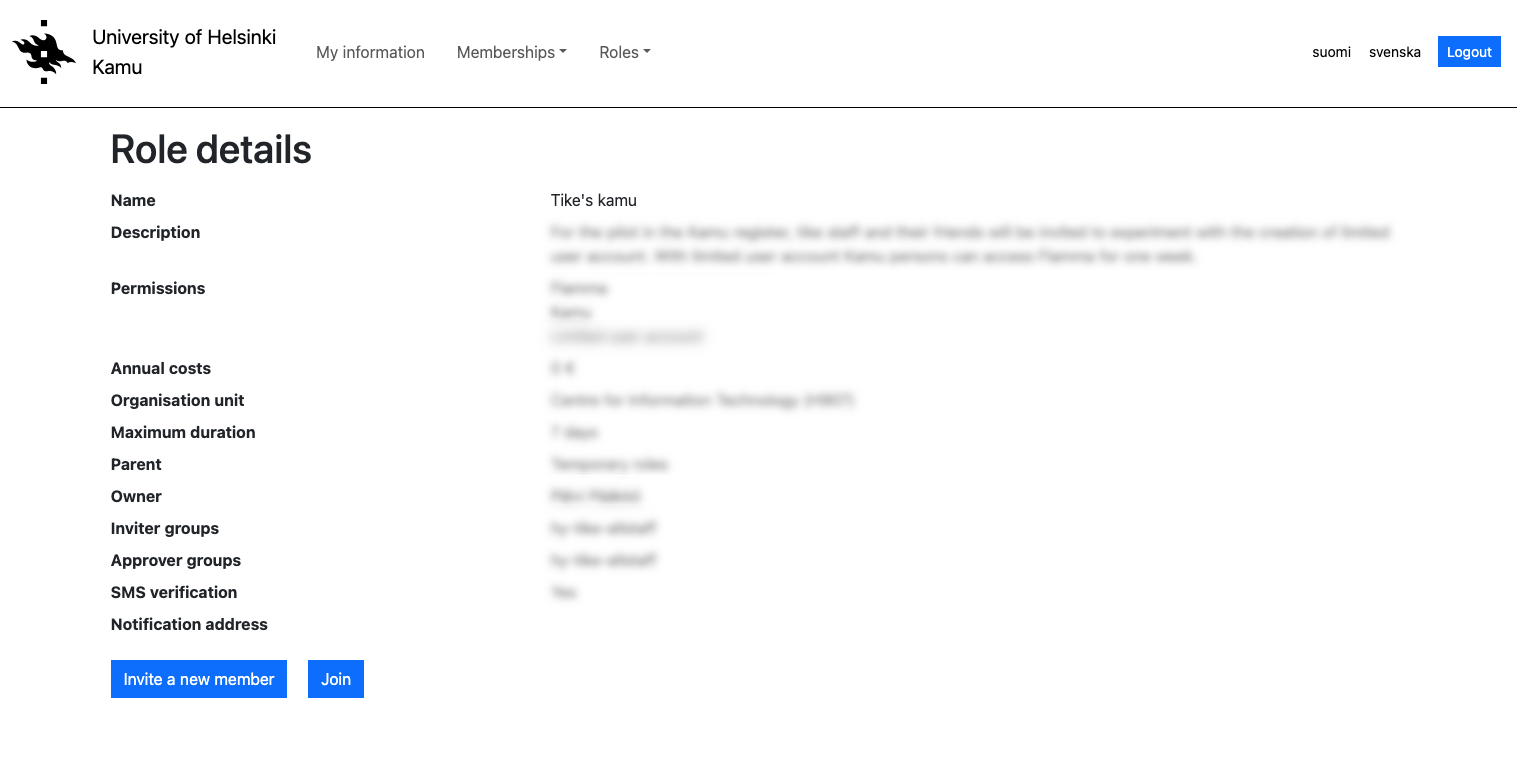
- When you have selected a role, the Role details page will open. Invite the person to the role by clicking on Invite a new member.
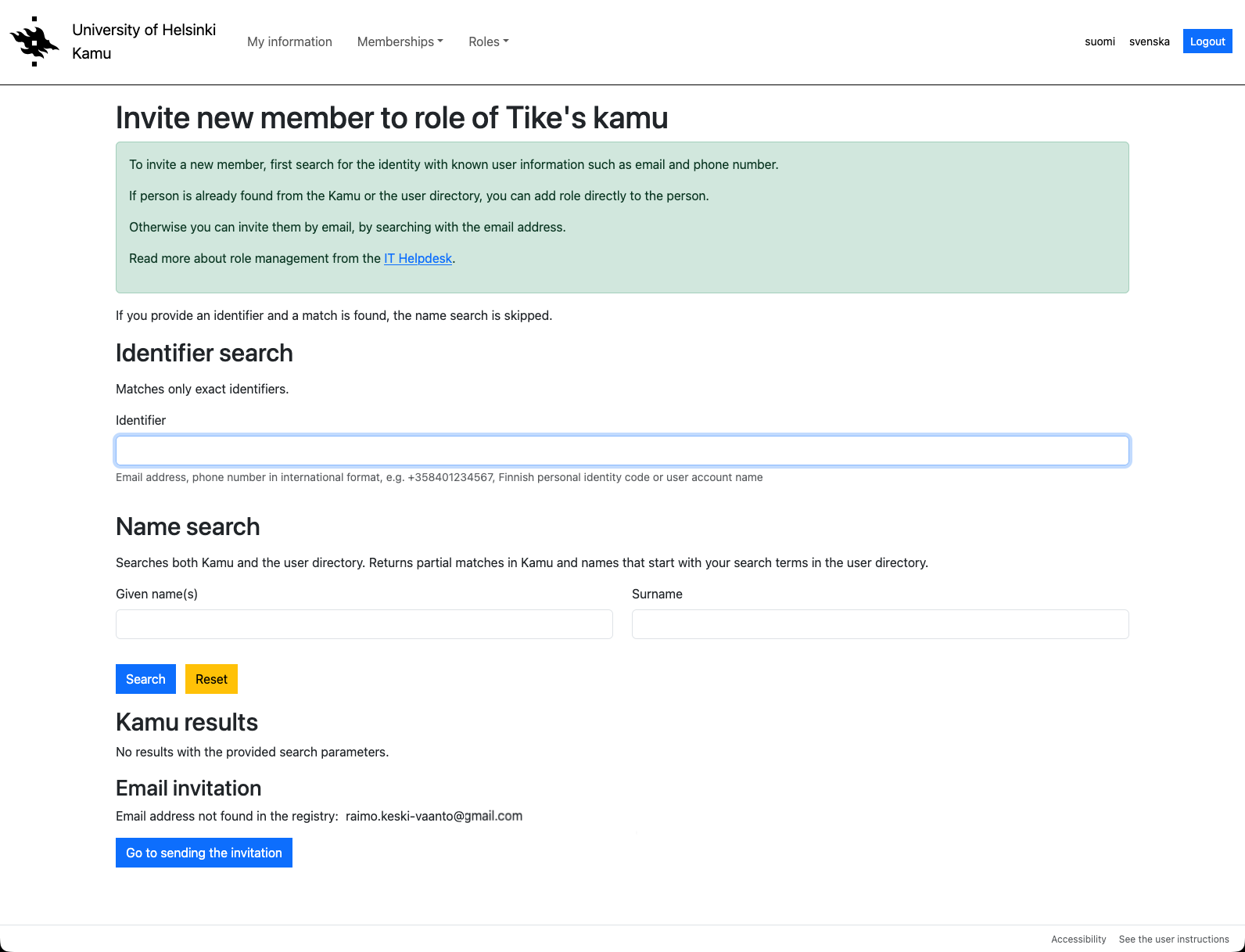
- To invite a new member, first search for the person using the credentials you know, such as email address and phone number. If the person already exists in Kamu or in the user directory, you can add the role directly to the person. Otherwise, you can invite the person by email by first searching for them by email address.
- Search for the person by name and email address. If you find the person in Kamu or in the user directory, you can add them by clicking Add to role.
- Once membership has been approved, Kamu will send the invited person an email regarding the addition of their role, provided an email address is listed in their details.
- The invited person should visit Kamu to check their details and add any missing information, such as an email address.
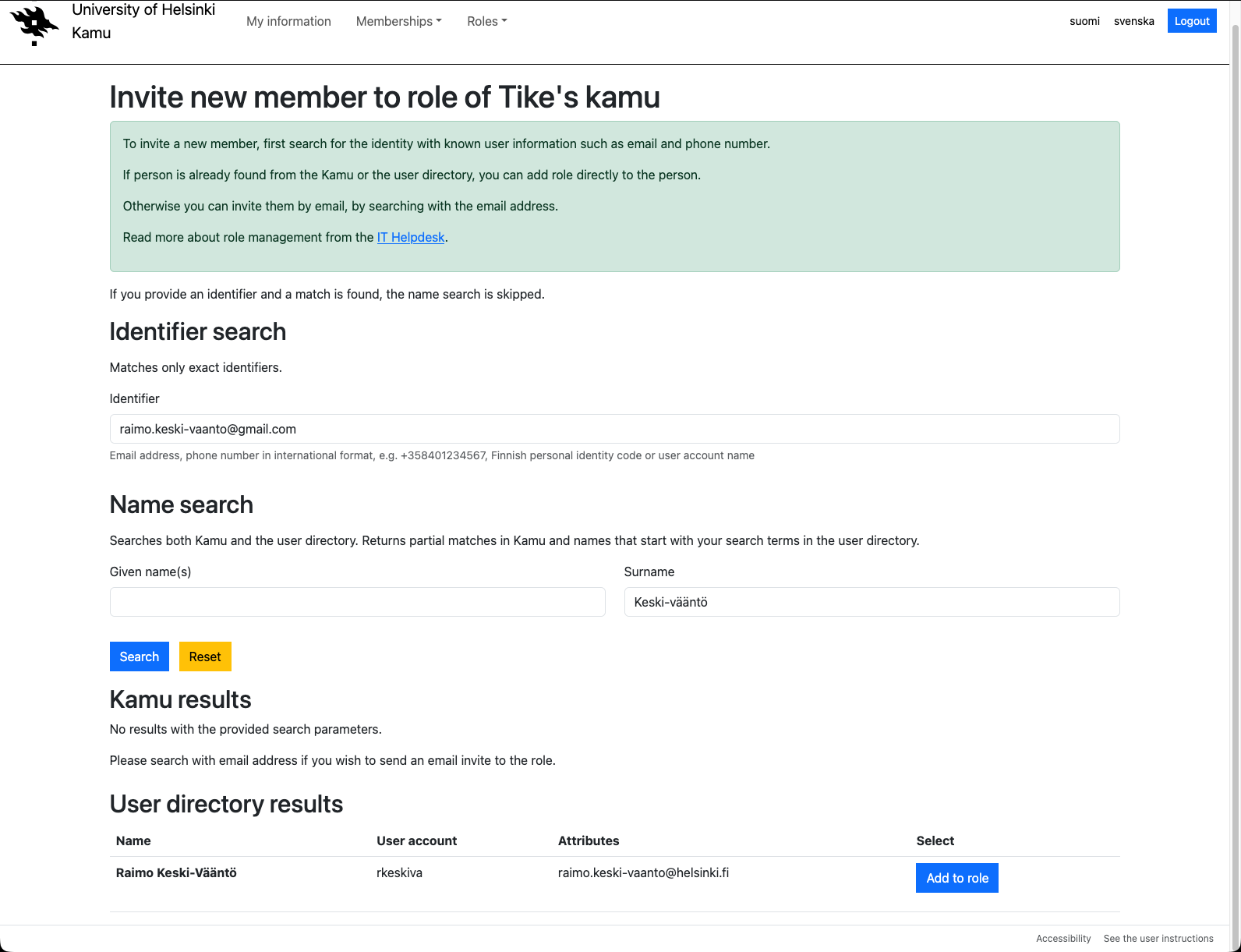
- If you cannot find the person in Kamu or the user directory, you can send them an email invitation to the role by selecting Go to sending the invitation under Email invitation.
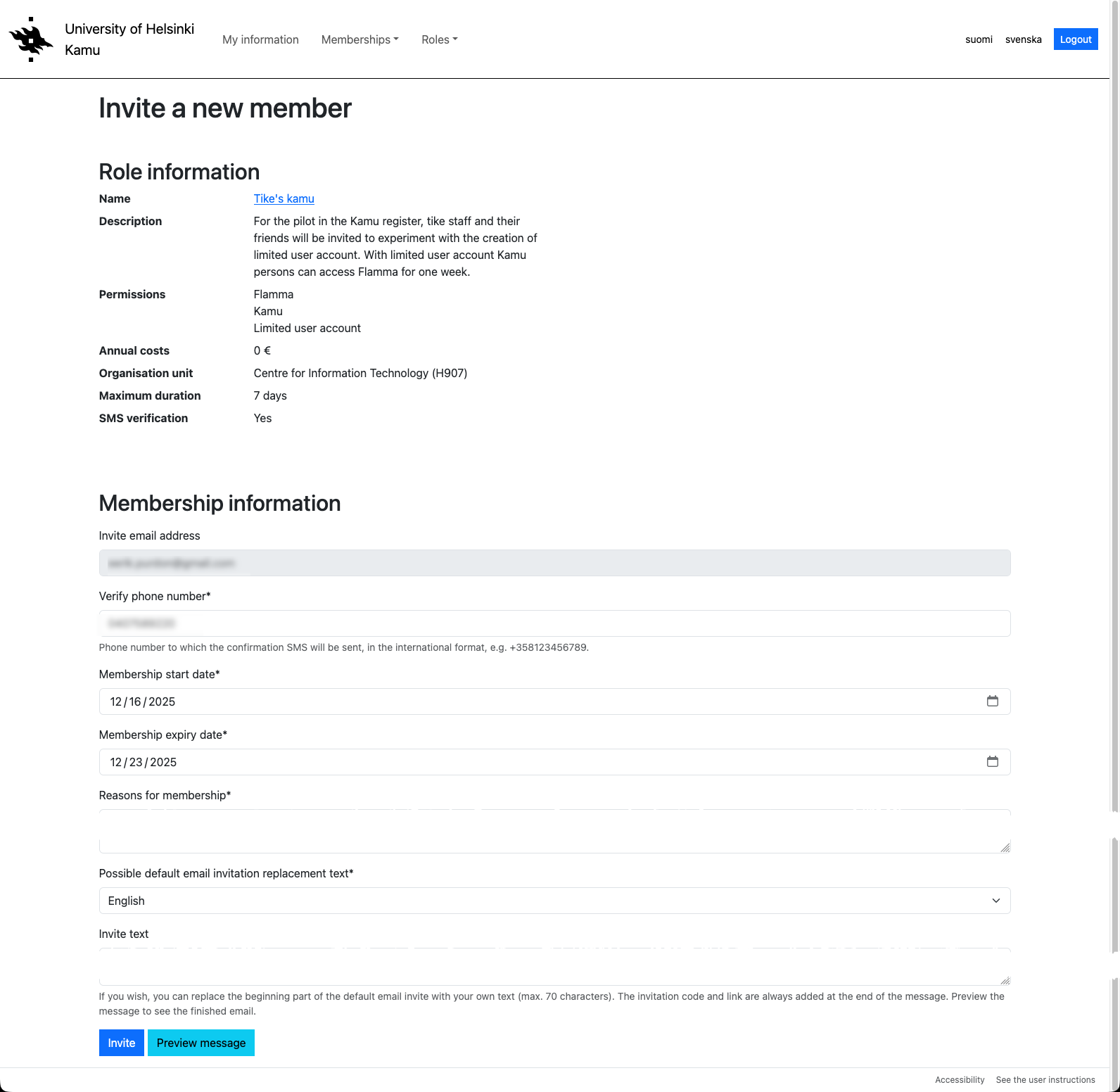
- In the Invite a new member box that appears, fill in the phone number of the person you want to invite (in international format, e.g. +358401234567), the start and duration of the membership, the reason for the membership, the language of the invitation and any alternative invitation text that replaces the automatic start of the invitation message.
- If you do not have approval rights for the role, tick the Notify approvers box, and the approver group will receive a notification about the invitation awaiting approval.
- Select Invite to send an invitation. Under Preview message you can preview the message to be sent.
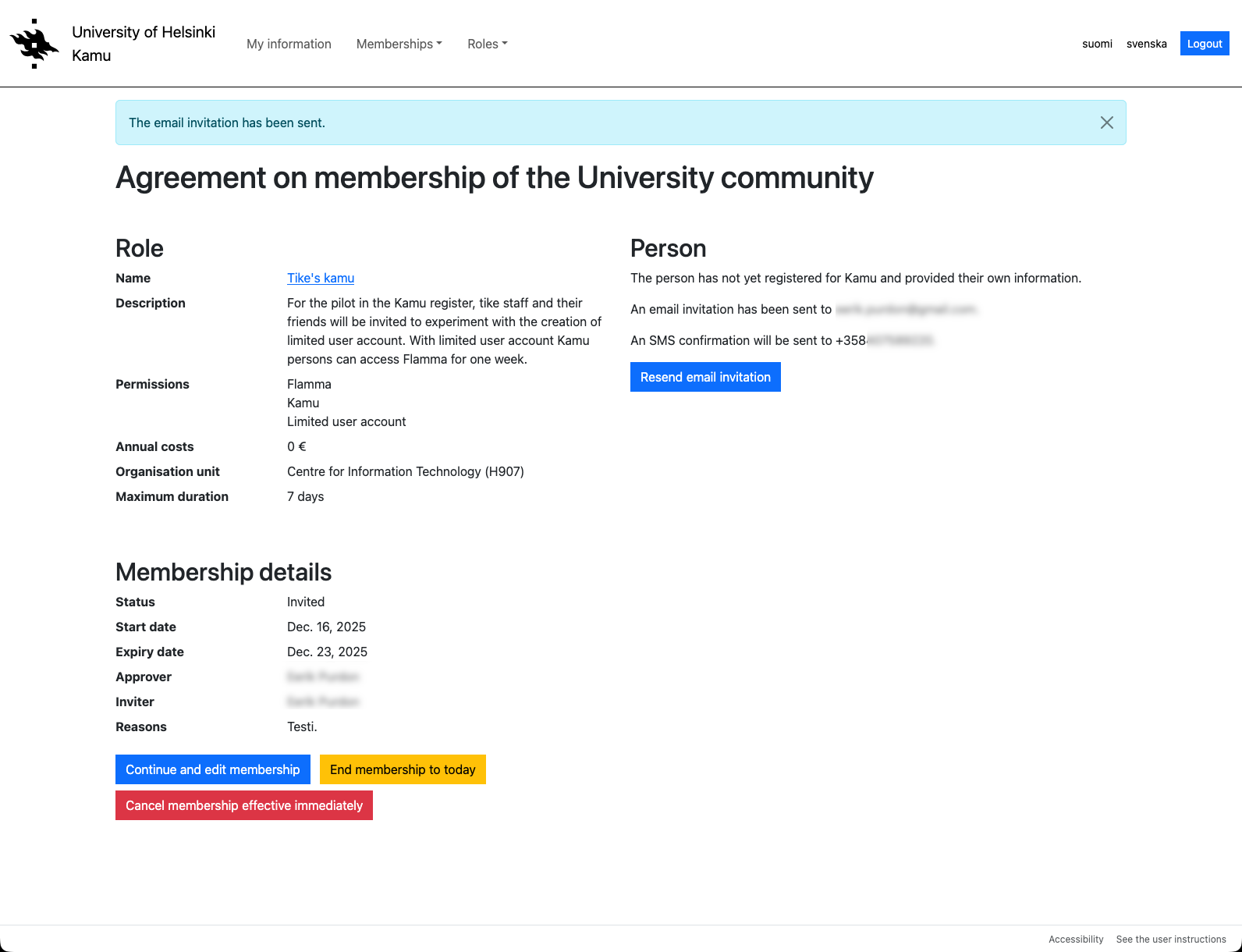
- Once the message has been sent, you will reach the Agreement on membership of the University community -page, where you can resend the invitation message if it does not reach the invitee for any reason. You can also upgrade, terminate or revoke a role membership, depending on whether you have the right to invite or also have the right to accept users to roles. Membership can only be cancelled or upgraded by the approver, terminated by the approver or the user themselves and the inviter can resend the invitation. In the section Extending and terminating the role membership, you can find more detailed instructions on how to extend or cancel the membership.
- Role membership requires the invited person to verify their email address and sign a non-disclosure agreement. For this reason, the inviter will see the following notifications in Kamu: “The membership requires a verified email address” and “The membership requires a signed contract: ‘Non-disclosure agreement’”. These notifications do not require any action on the part of the inviter.

Inviting a large number of people
If you need to invite a large number of people to Kamu at once, please contact IT Helpdesk.
Extending and terminating the role membership
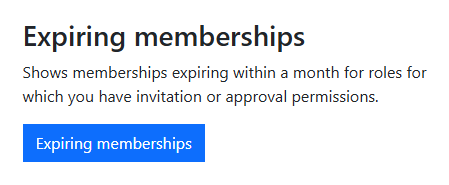
Under Expiring memberships on the home page, you can view the memberships for which you have invitation or approval permissions and which are due to expire within 30 days.

By selecting a person’s name, you can view more detailed membership information and edit the basis and validity period of the membership. To make changes to a membership, you must have approval rights.
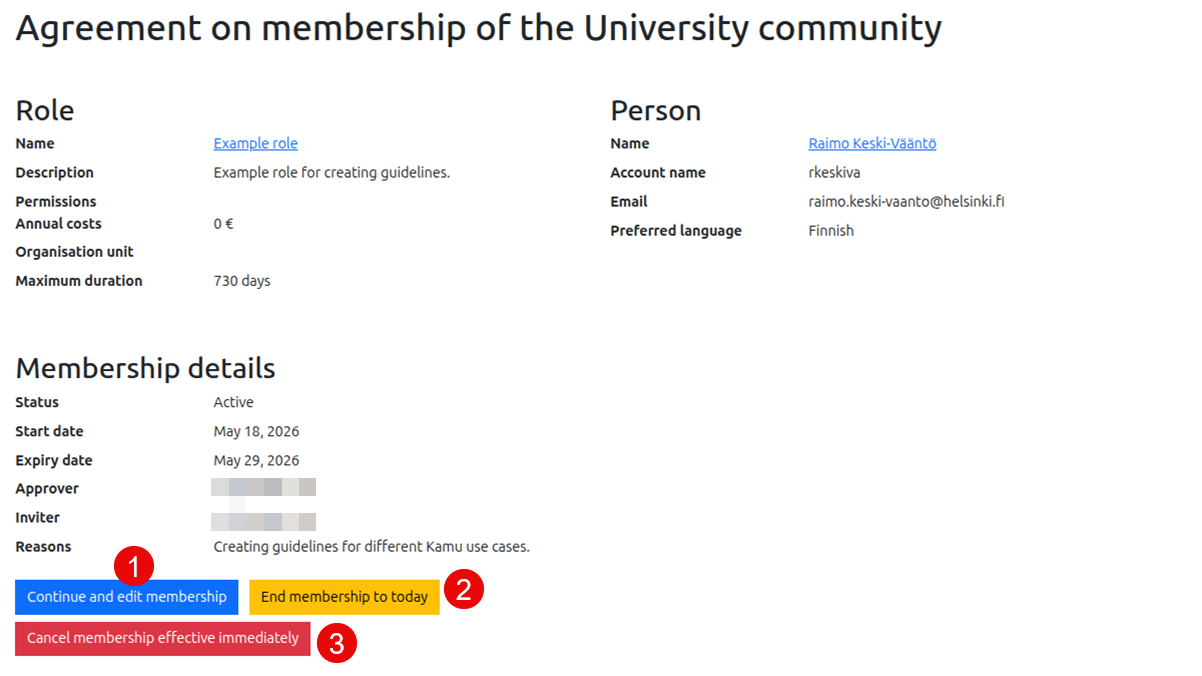
- By clicking the Continue and edit membership (1) button, you can change the basis for a person’s membership or its validity period. Select the membership expiry date and enter the reasons for the membership.
Note! If a person’s role membership has expired, its validity cannot be extended. In this case, the person must be added to the role again.

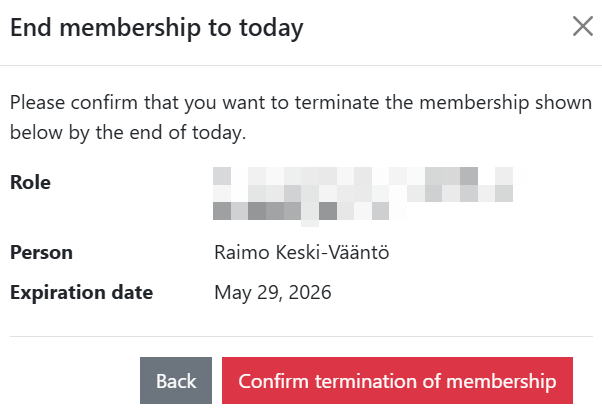
- By clicking the End membership to today (2) button, you can terminate a person's membership after today.
- By clicking the Cancel membership effective immediately (3) button, you can cancel a person's membership and the associated rights immediately.
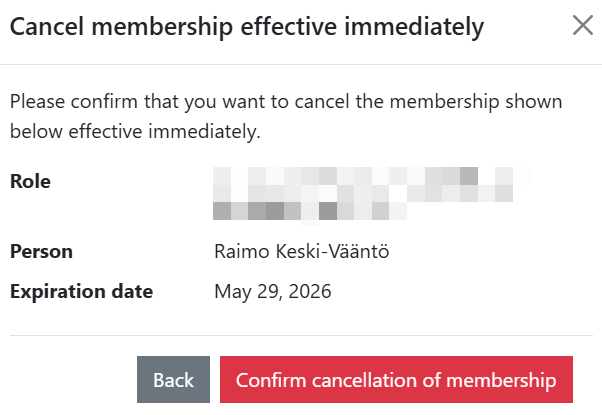
Note! A person’s standard user account (not a limited user account) will only be deactivated the following night if there are no other grounds for its continued validity. If the account needs to be deactivated immediately, please contact IT Helpdesk.
Changing and resetting your password
Changing your limited user account password
You can change your limited user account password in the Kamu service.
You can also change a forgotten password in Kamu by logging in using the same method you used when registering for Kamu, or via Suomi.fi authentication if you have used it in Kamu before.
Changing your AD account password
You can change your AD account password via the MyAccount service at https://myaccount.helsinki.fi/.
Read more about changing your password via the MyAccount service in the separate instructions.
Logging in to the university services
Logging in with a limited user account
Once you have created a limited user account, you can log in to Kamu and other university services to which you have access.
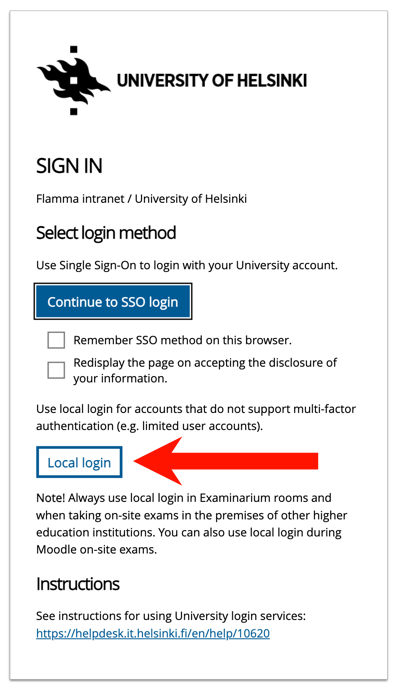
When logging in, select the Local login option, as the limited user account does not support the university’s single sign-on (SSO) or multi-factor authentication (MFA).
Logging in with an AD account
Read more about logging in with an AD account in the separate instructions.
All user account instructions
Detailed help
Video instruction
Give feedback
The instructions site of the University of Helsinki's IT Helpdesk helps you with IT-related issues related to your work. Let us know how we can improve our instructions. We greatly appreciate your feedback!
How would you improve these instructions?