
Webropol is a survey and a reporting tool available for both students and staff. It can be used to create surveys and collect data efficiently. Webropol offers a wide range of analysis tools and rich visual reporting capabilities. It is suitable for handling non-sensitive data.
RedCAP is a tool used by the university and is also suitable for sensitive data.
Read more about the University's data security policy and rules in Flamma (requires login).
You can log in to Webropol at https://webropol.fi. These instructions will provide you with basic information on how to log in to Webropol, its home directory system and how to change the language from within the system. If you need help with surveys, event invitations or other functions, check out Webropol's own comprehensive help videos at https://new.webropolsurveys.com/TrainingVideos/Home (Finnish only).
Quick help
Table of contents
Quick start guide
Logging in
- Go to https://webropol.fi.
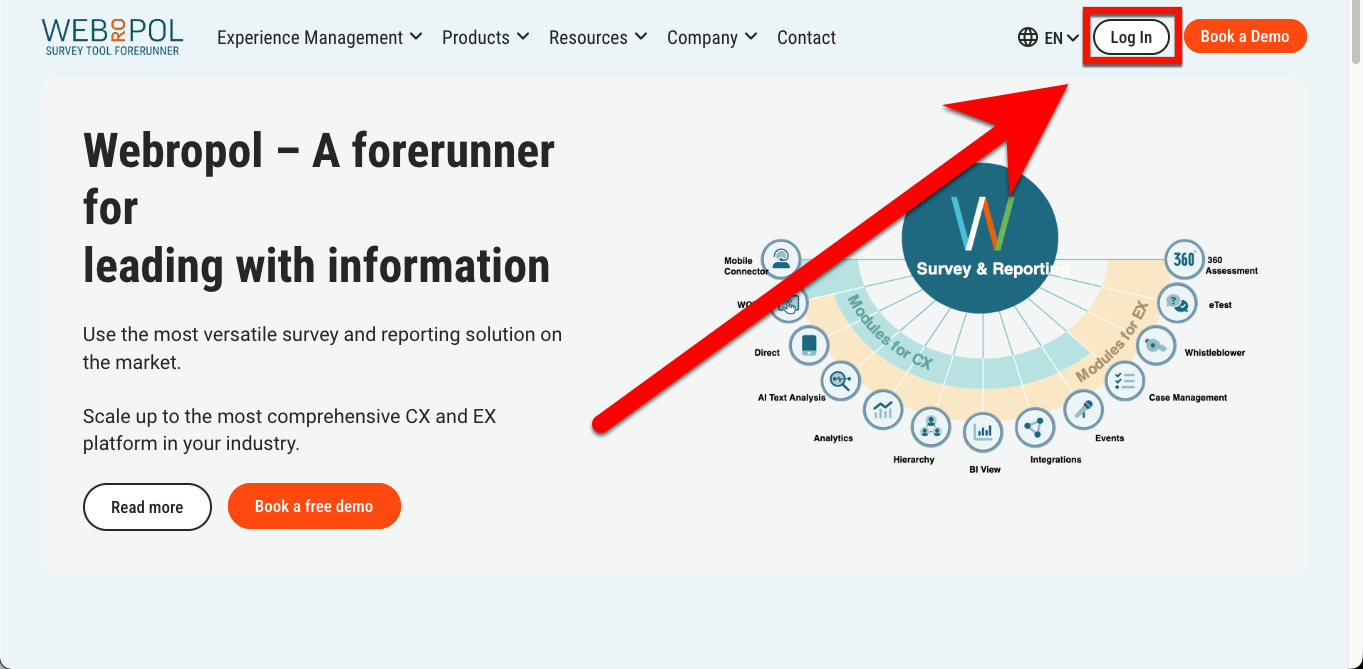
- Click Log in in the top right-hand corner.
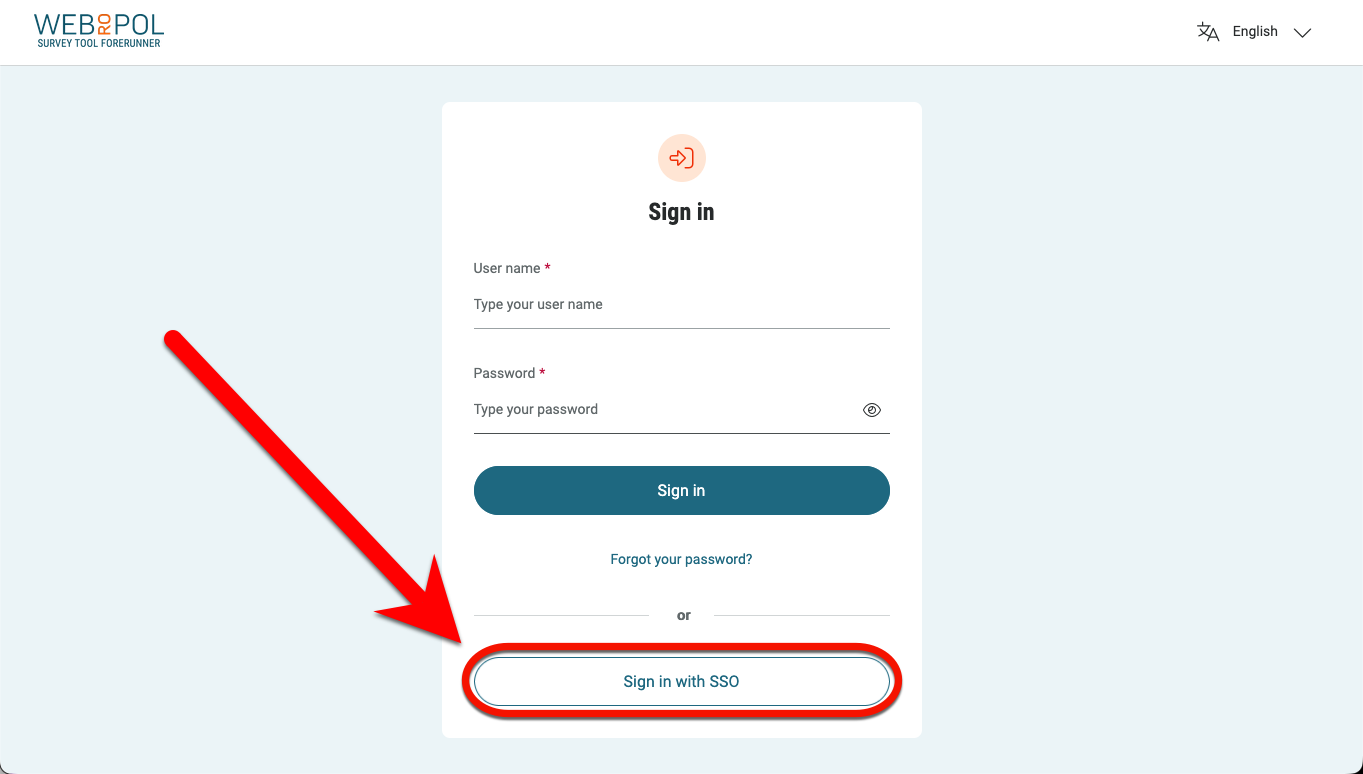
- On the login page that opens, select Sign in with SSO.
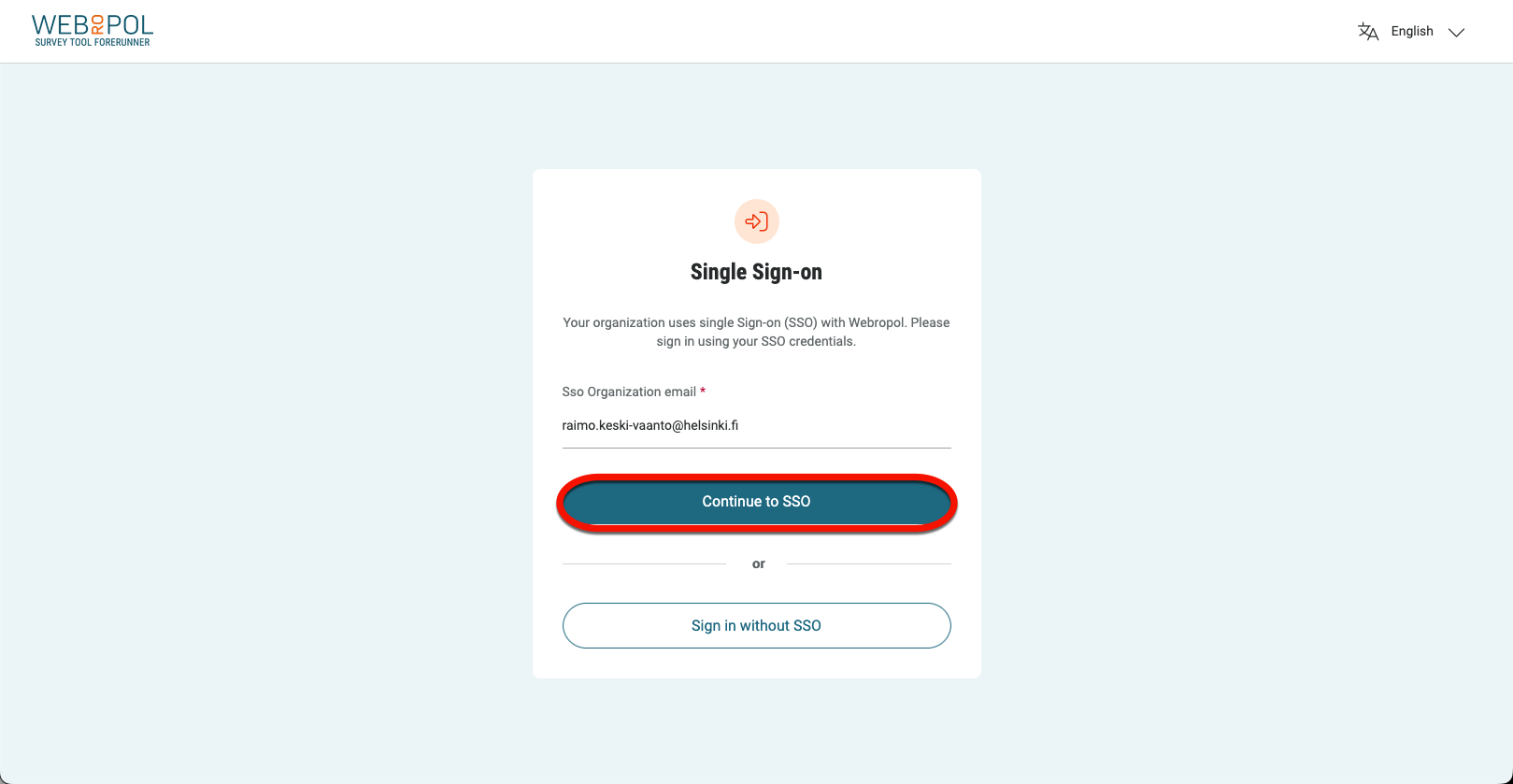
- Enter your email address in the email field in the format etunimi.sukunimi@helsinki.fi (e.g. raimo.keski-vaanto@helsinki.fi) as your Single Sign-on (“SSO”) ID.
- Select Continue to SSO.
Changing the language
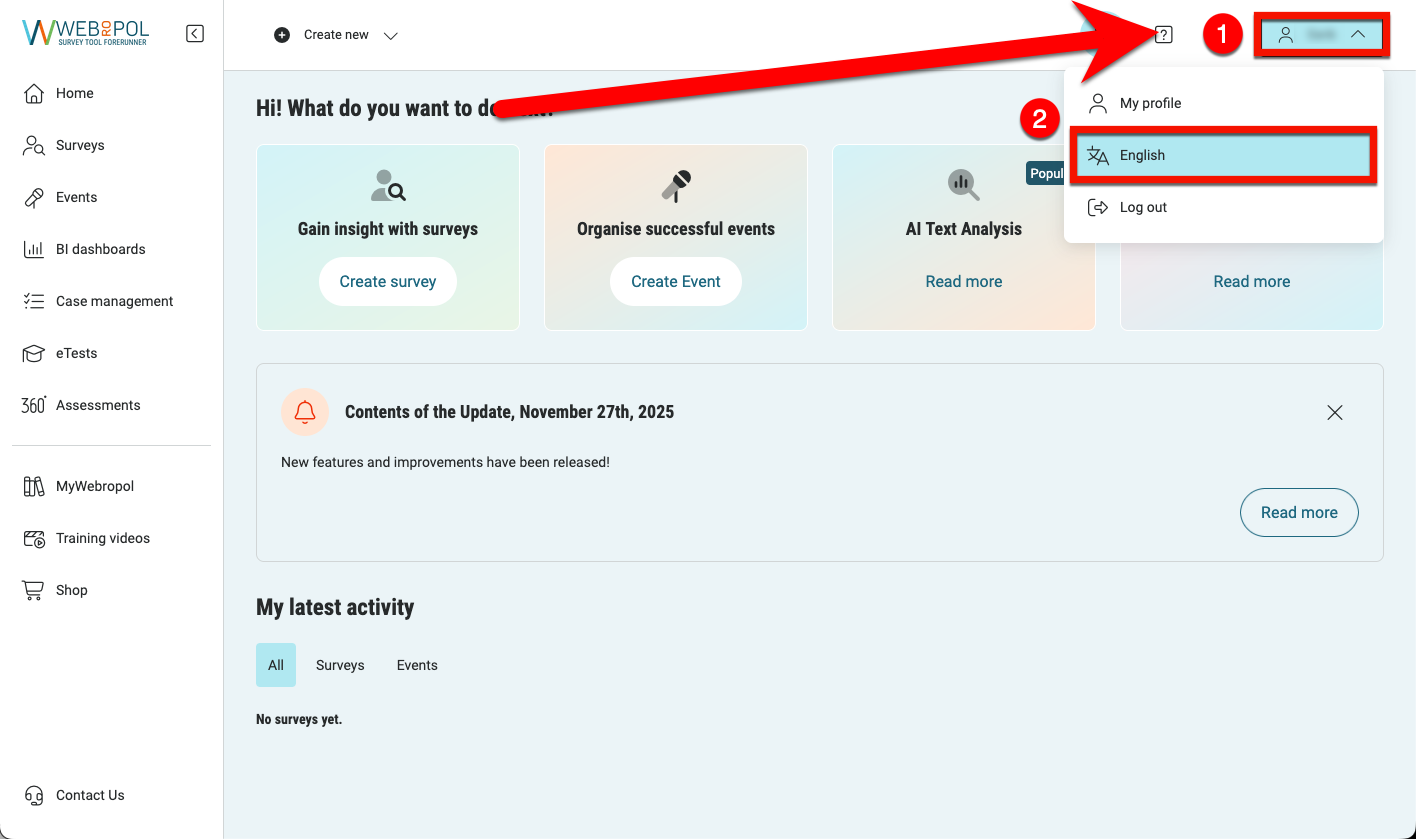
- You can change the service language via the profile menu > language
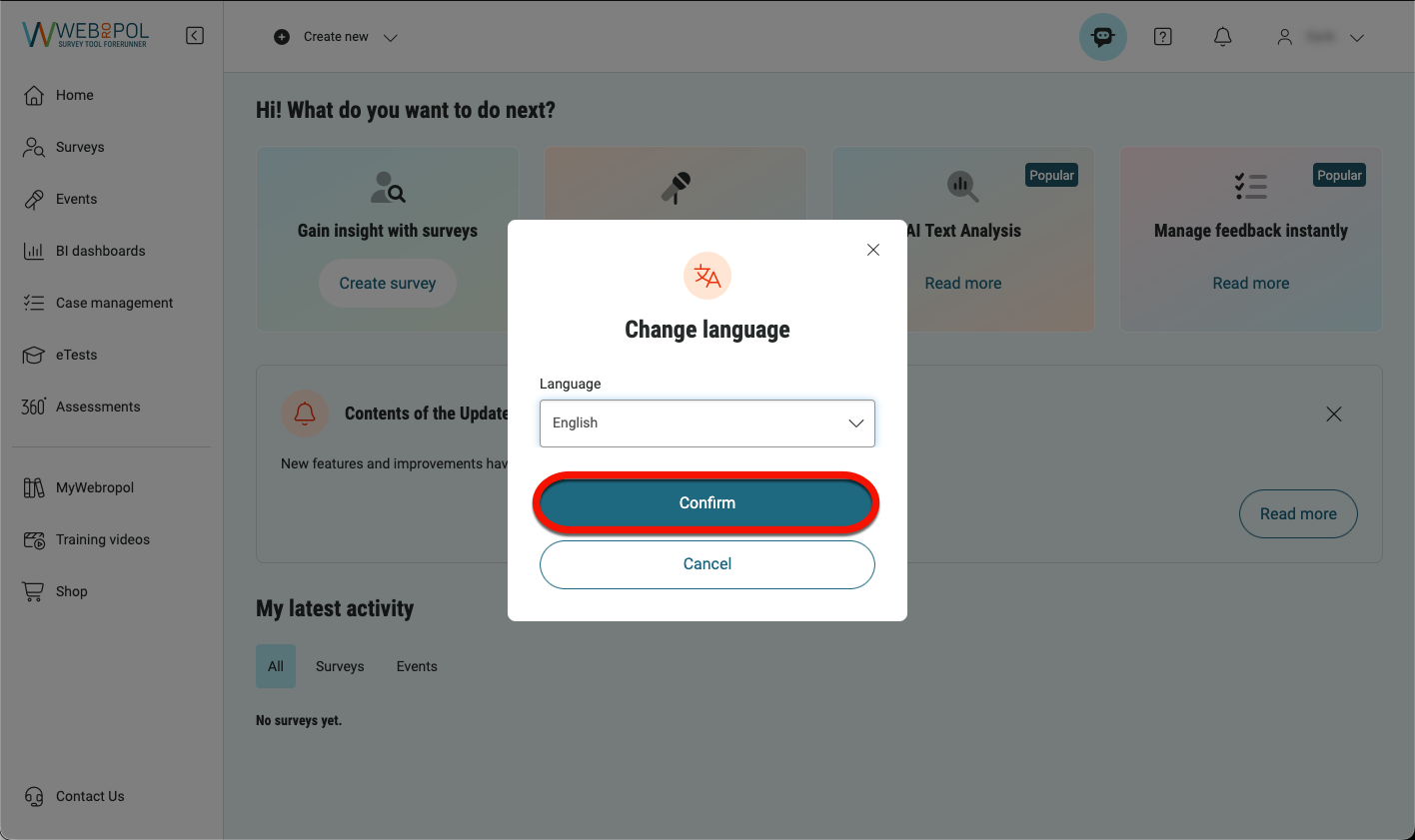
- Select your preferred language from the Change language menu and click Confirm.
Folders
- In Webropol, surveys and events are always created under the folder for your department or unit. Webropol does not automatically set your home folder, so you must do this yourself when you start using Webropol.
Please note! Home folders are set separately for surveys and event management, so remember to do this for both individually. You can recognise your selected home folder by the cottage-shaped icon displayed next to it.
- Select Surveys or Events. The Folders view will open. Find your own department or unit in the list of units and click the three-dot icon next to it. From the menu that opens, select Set as home folder.
- If you cannot see any folders, check that the Folders tab is not hidden in the user interface. You can open the Folders tab by tapping the >> - icon
Tips for a good survey
- Keep your survey short and clear
- Use unambiguous questions
- Avoid too many compulsory questions
- Test your survey before distributing it
Further information about Webropol
Detailed help
Logging in
- Go to https://webropol.fi.
- Click Log in in the top right-hand corner.
- On the login page that appears, select Sign in with SSO.
- In the email field, enter your email address in the format etunimi.sukunimi@helsinki.fi (e.g. raimo.keski-vaanto@helsinki.fi) as your Single Sign-on ("SSO") ID.
- Select Continue to SSO.
Changing language
- To change the language of the service once you are logged in, first click (1) on your profile menu, then select (2) the language from the submenu that appears and click on it.
- Select the language you wish to use from the Change language menu that appears and click Confirm.
Folders
- In Webropol, surveys and events are always created under the folder of your institution or unit. Webropol does not automatically set up your home folder, so do it yourself when you start using Webropol.
Note! Separate home folders are defined for surveys and event management, so be sure to do this for both separately. You can identify your selected home folder by the cottage-shaped icon next to it.
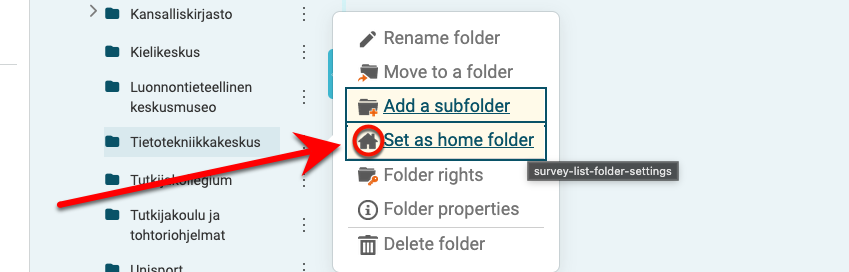
- Select (1) Surveys or (2) Events. The (3) Folders view will appear. Find your institution or unit in the list of units and (4) click on the three-dot icon behind it. From the menu that appears, select (5) Set as home folder.
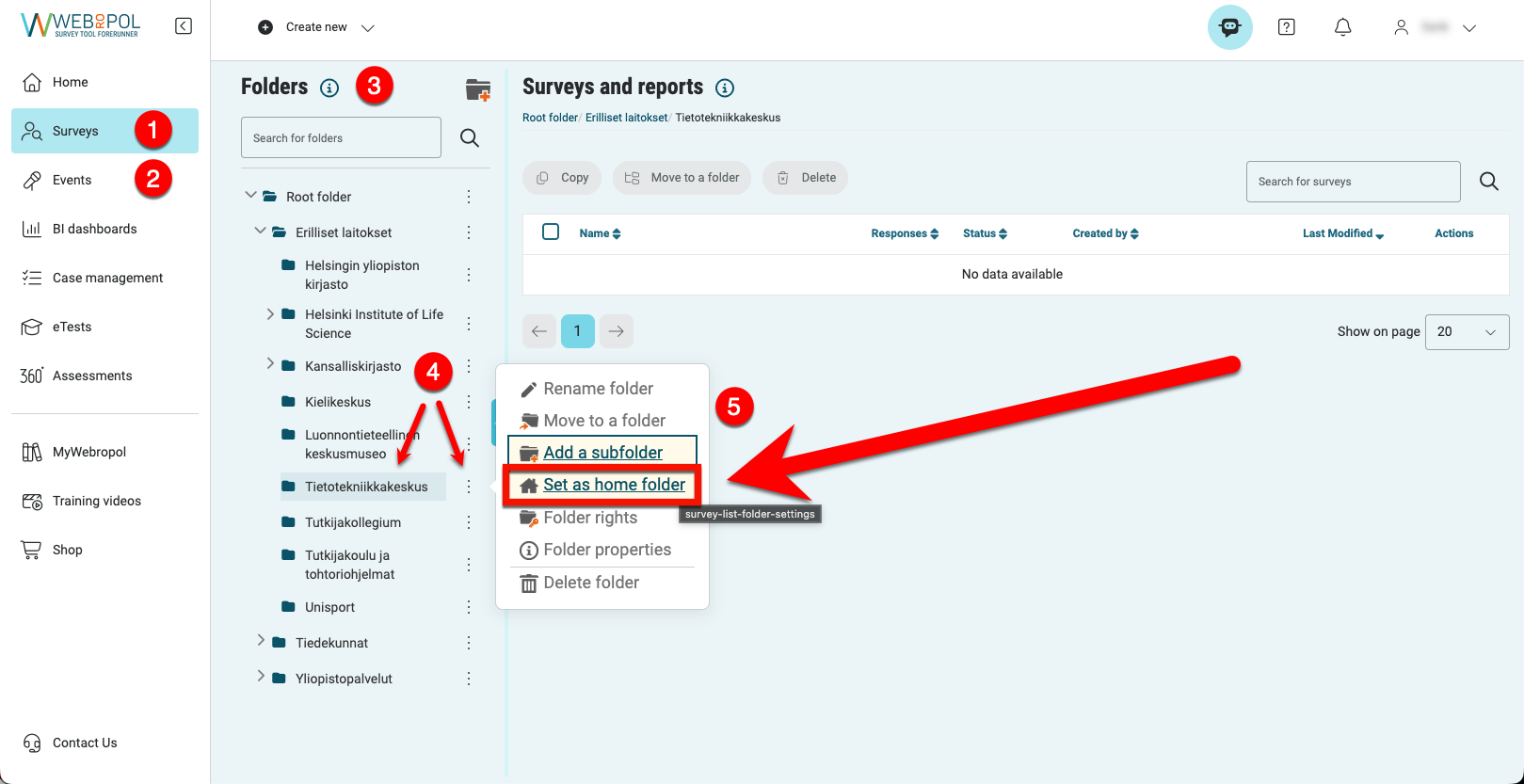
- If you cannot see the folders, make sure that the folder tab is not hidden in the interface. You can open the folder tab by tapping the >> icon.
Examples of uses
Education and universities
- Course feedback from students
- Staff surveys
- Mapping the user experience of IT services
Events and projects
- Event feedback
- Registrations and participant details
- Post-project evaluation
Tips for creating a good survey
- Keep the survey short and clear
- Use unambiguous questions
- Avoid too many compulsory questions
- Test the survey before distributing it
Video instruction
Give feedback
The instructions site of the University of Helsinki's IT Helpdesk helps you with IT-related issues related to your work. Let us know how we can improve our instructions. We greatly appreciate your feedback!
How would you improve these instructions?