
This guide and pictures are made for a Lenovo Tab P11 Plus tablet running Android version 12. For other devices and system versions, there may be minor differences in the installation and use. Adjust the instructions according to your device.
You must personally ensure the information security of the mobile devices you use.
Quick help
Installation
- Download and install Outlook from Google Play store.
- When the software has been installed, click Open.
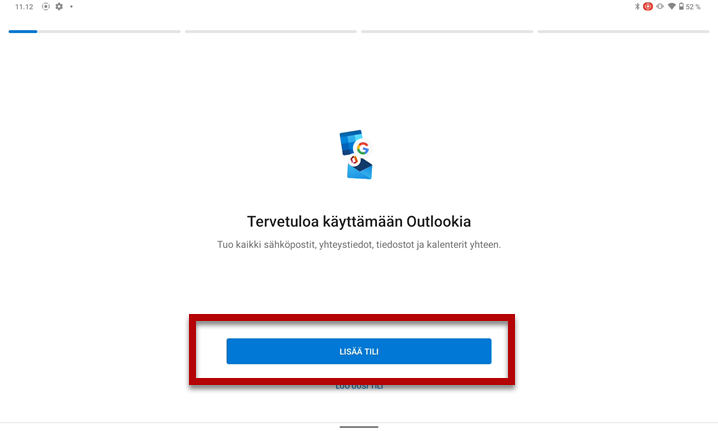
- Click ADD ACCOUNT.
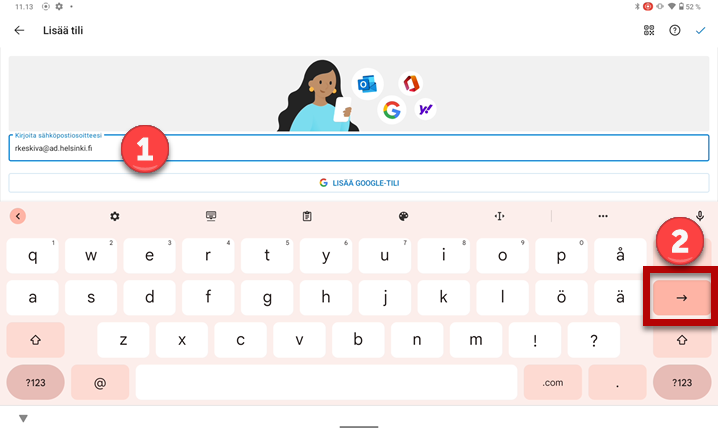
- Enter an address in a long format username@ad.helsinki.fi (e.g. rkeskiva@ad.helsinki.fi).
- Click the right arrow button on the virtual keyboard.
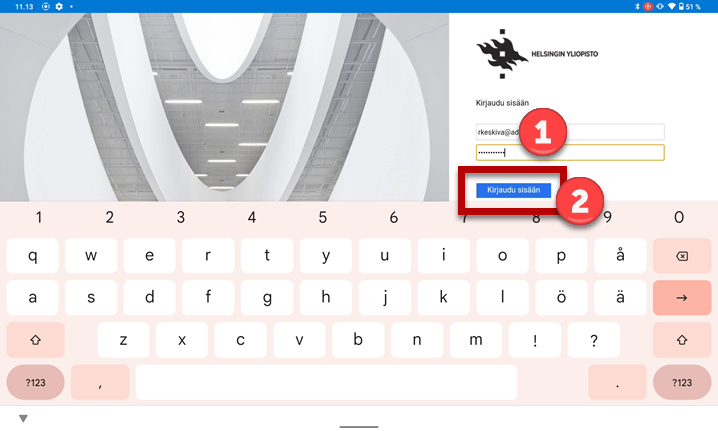
- Enter your password.
- Click Sign in.
See the 'Detailed instructions' tab for more detailed instructions.
Detailed help
Installation
- Download and install Outlook from Google Play store.
- When the software has been installed, click Open.
- Click ADD ACCOUNT.
- Enter an address in a long format username@ad.helsinki.fi (e.g. rkeskiva@ad.helsinki.fi) (1) and click the right arrow button (2).
- Enter your password (1) and click Sign In (2).
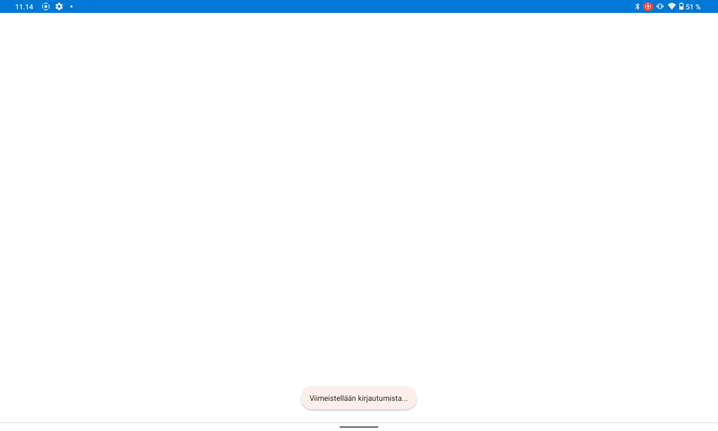
- Completing the installation may take a while.
- Outlook opens. Now you can use the email normally.

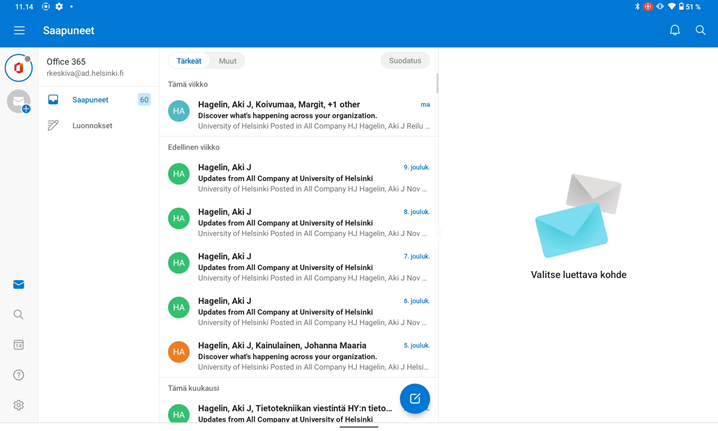
Settings and error situations
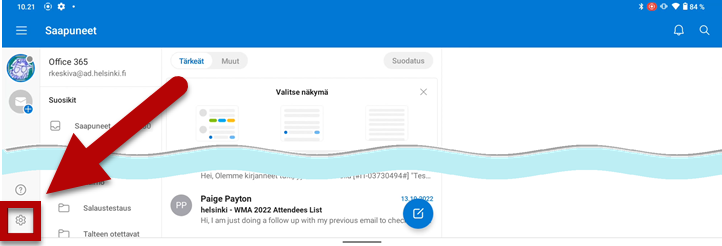
You can edit your account settings using the gear icon on the bottom left. In case of problems, you can delete the account and reinstall it.
- Click the gear icon.
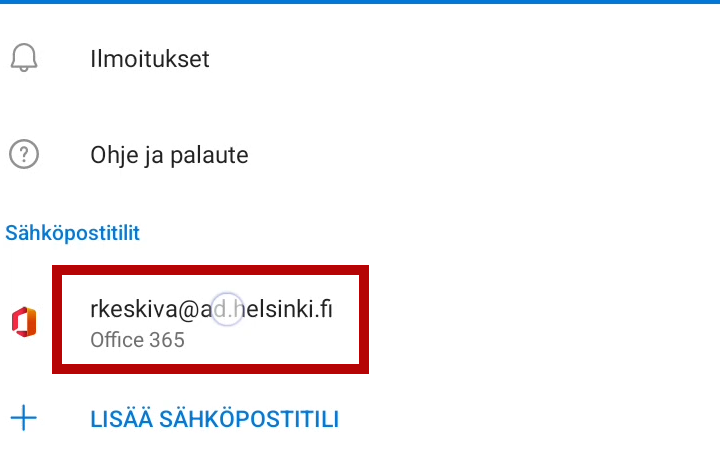
- Click your account.
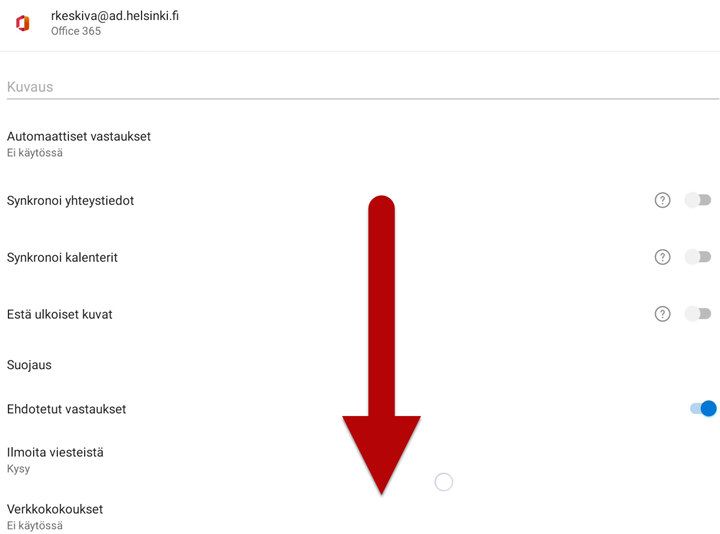
- Scroll to the bottom of the page.
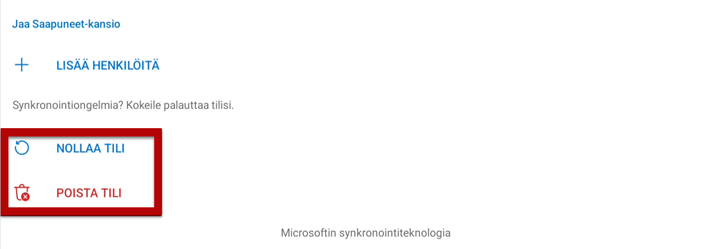
- You can reset your account or delete it. In case of problems, the safest way is to delete the account and reinstall it.
Instructions from Microsoft
Other email apps
If you do not wish to or are unable to use Outlook, you can check with your phone manufacturer for instructions on alternative ways to read your emails.
Microsoft’s instructions: Setting up email in the Android email app
Data security in mobile devices
Video instruction
Installation
Settings and error situations
You can edit your account settings using the gear icon on the bottom left. In case of problems, you can delete the account and reinstall it.
Give feedback
The instructions site of the University of Helsinki's IT Helpdesk helps you with IT-related issues related to your work. Let us know how we can improve our instructions. We greatly appreciate your feedback!
How would you improve these instructions?