
Note! The University's Download centre interface was redesigned on 18 March 2026 Read more about the change in the Download centre in the Flamma.
NB!
- Some browsers have had problems downloading software. If the download does not work, try another browser.
- If your browser has an add-on that prevents scripts from running (e.g. ublock, adblock, similar), downloading software from the Download centre may not work.
Would you like to install software on the university's centrally maintained computers?
Quick help
The Download centre can be found at https://ohjelmistojakelu.helsinki.fi/
Log in with your university ID (e.g. rkeskiva or hy12345).
Scroll down the list and select Download for the program you wish to install.
See the pictorial instructions on the Detailed Instructions tab.
Detailed help
Login and user interface components
Log in to https://ohjelmistojakelu.helsinki.fi/ with your university ID (e.g. rkeskiva or hy12345).
A home page will appear, where you will see a list of programs that you can download to your home computer.
Introduction to the user interface:
1. You can filter to display only programs for a specific operating system.
2. You can filter to display only programs in a specific category.
3. Search field allows you to search for a specific program by name.
4. Download the program.
5. Change the language of the Download centre.
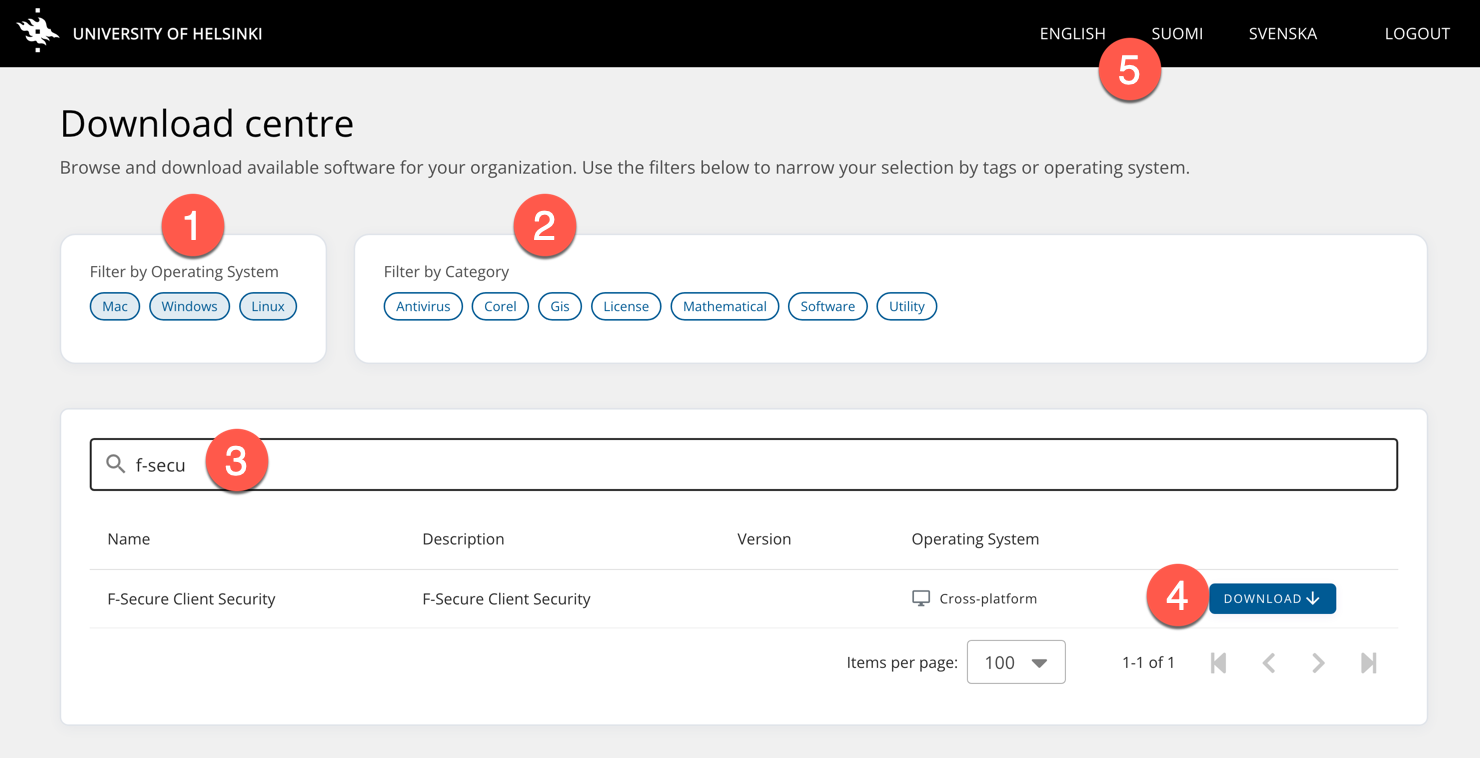
Scroll through the list and select Download for the program you want to install.
Search
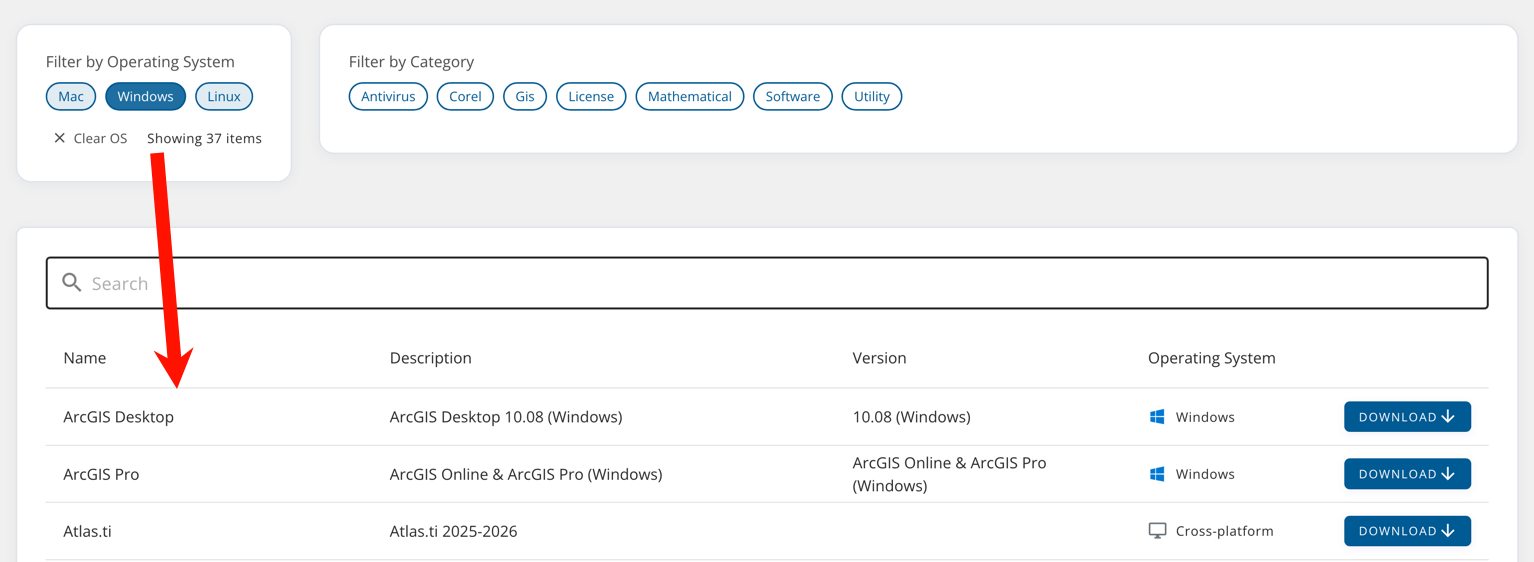
You can also use predefined tags to narrow down your search. For example, by clicking on the Windows tag, you will get a list of all Windows programs.
You can also search for a specific keyword. Enter the name or part of the name of the program, e.g. Atlas.ti or Atlas*
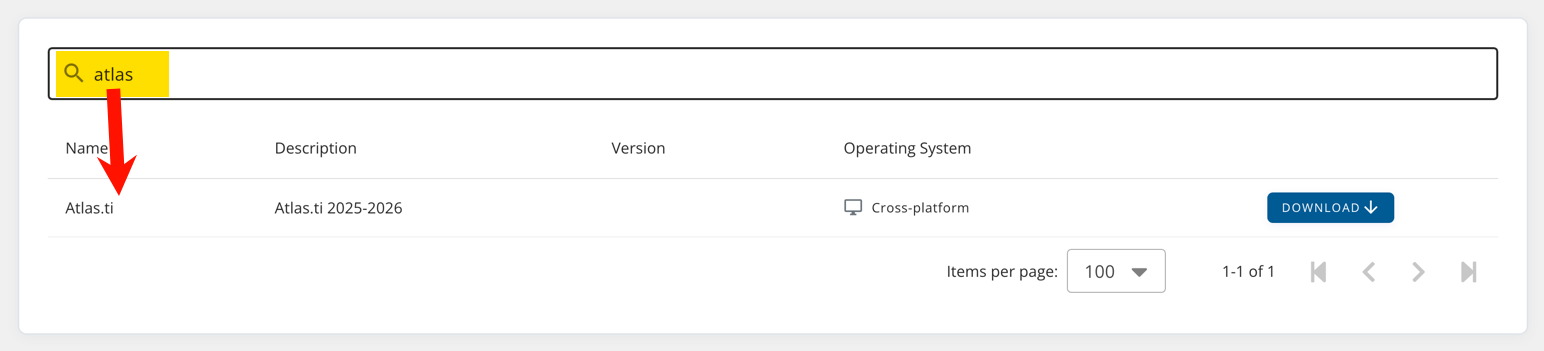
Note that you do not need to click the Enter button to search, the search will be done as you type. If you don't get any hits, change the search term.
Downloading a software
When you find the software you want, e.g. Atlas.ti, click on Download after the search section. A form will appear, giving more details about the software to be installed and presenting the EULA (end-user license agreement), which you must read and accept before downloading.
- If you want to download the software, you must accept the EULA.
- Click Accept.
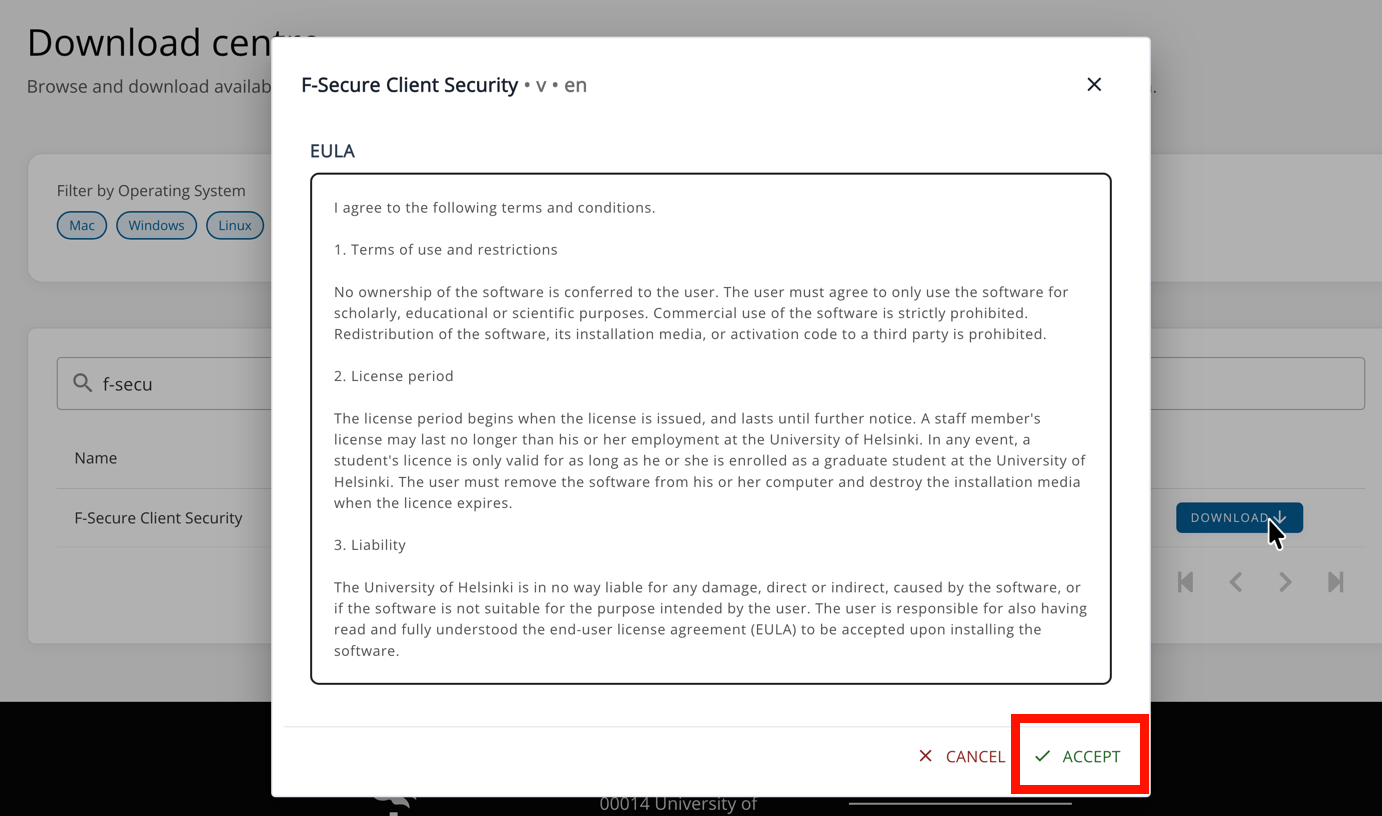
- Further instructions and a download button will open.
- Click on the Download button below the green bar to download the attached text file. Be sure to save any Installation key provided in the instructions if it is required for the installation. Follow the instructions on the page/file.
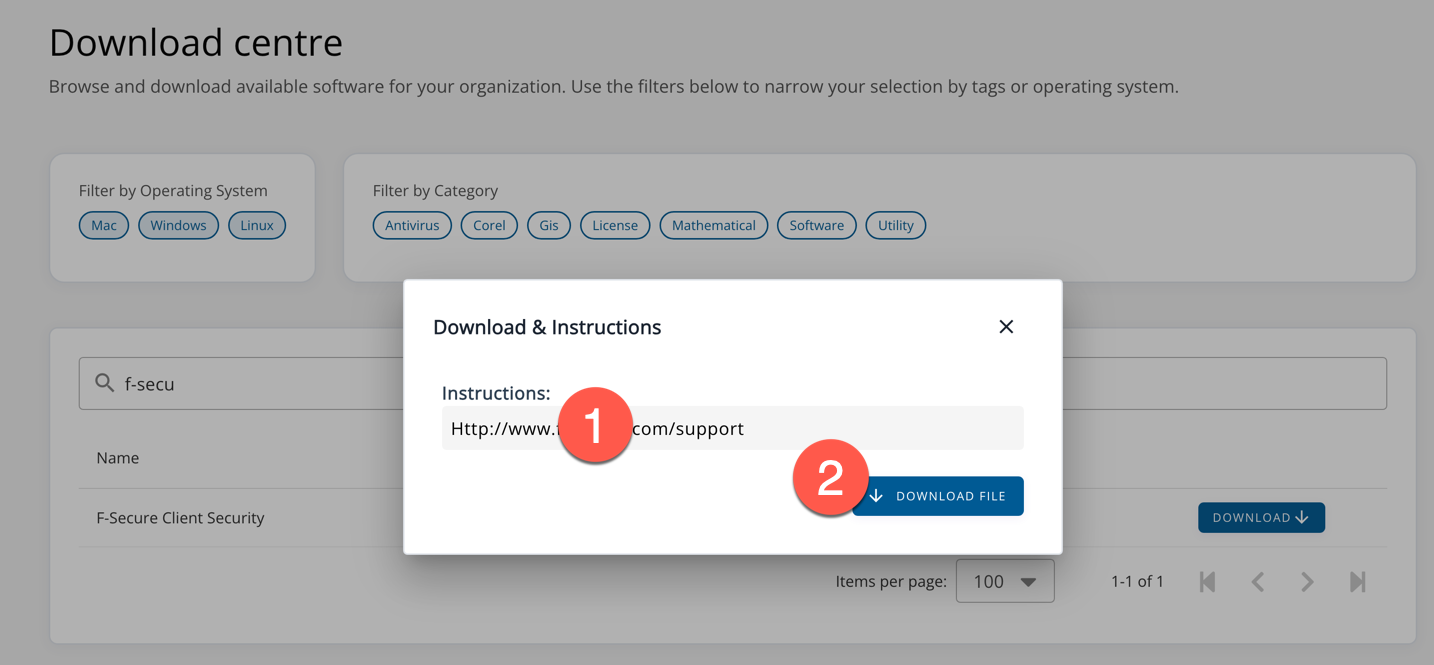
Please note that the download link is only valid for one hour.
Can't find the software?
If you know the software is available in the Download centre but you do not see it, it is usually because you are not entitled to download it because you belong to a special group. Special restrictions include, for example, docents, scholarship holders, hourly teachers, civil servants, students doing additional studies, students registered as absent and open university students. However, the licence agreements allow for exceptions for some softwares and categories, so it is still advisable for those in these categories to check their rights to install the softwares when purchasing them.
For further information on any problems, please contact the IT Helpdesk.
Video instruction
Here's how to download and install software from theDownload centre.
Give feedback
The instructions site of the University of Helsinki's IT Helpdesk helps you with IT-related issues related to your work. Let us know how we can improve our instructions. We greatly appreciate your feedback!
How would you improve these instructions?